Task Management
Task Management is bit-Agent's full-process tracking and control module for user operations and automated execution. Every capability execution started in general mode or triggered from the console is recorded as a task.
Task Management helps users track runtime status, execution results, and historical records in real time, making workflows transparent and controllable.
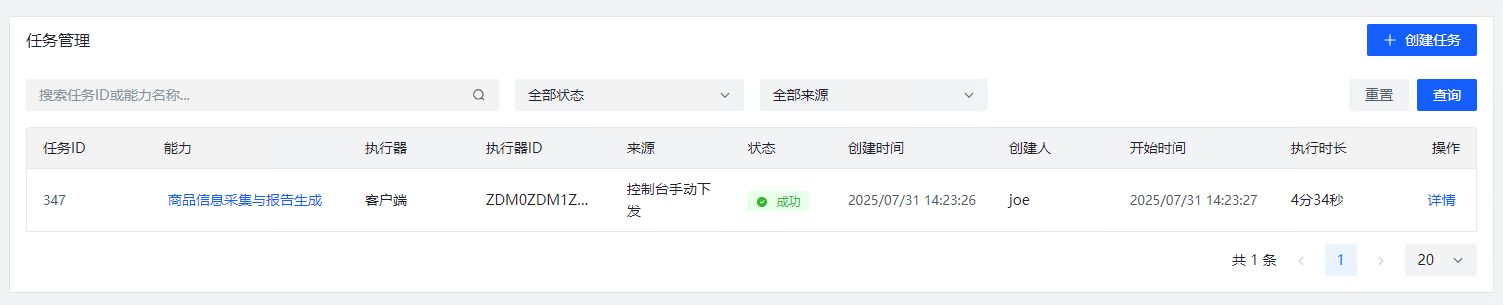
Create a Task
Click the Create Task button to create and execute a task in the console. Creating a task requires several types of parameters:
Capability and Parameters
You must choose a capability to execute. After selection, its parameters are displayed below.
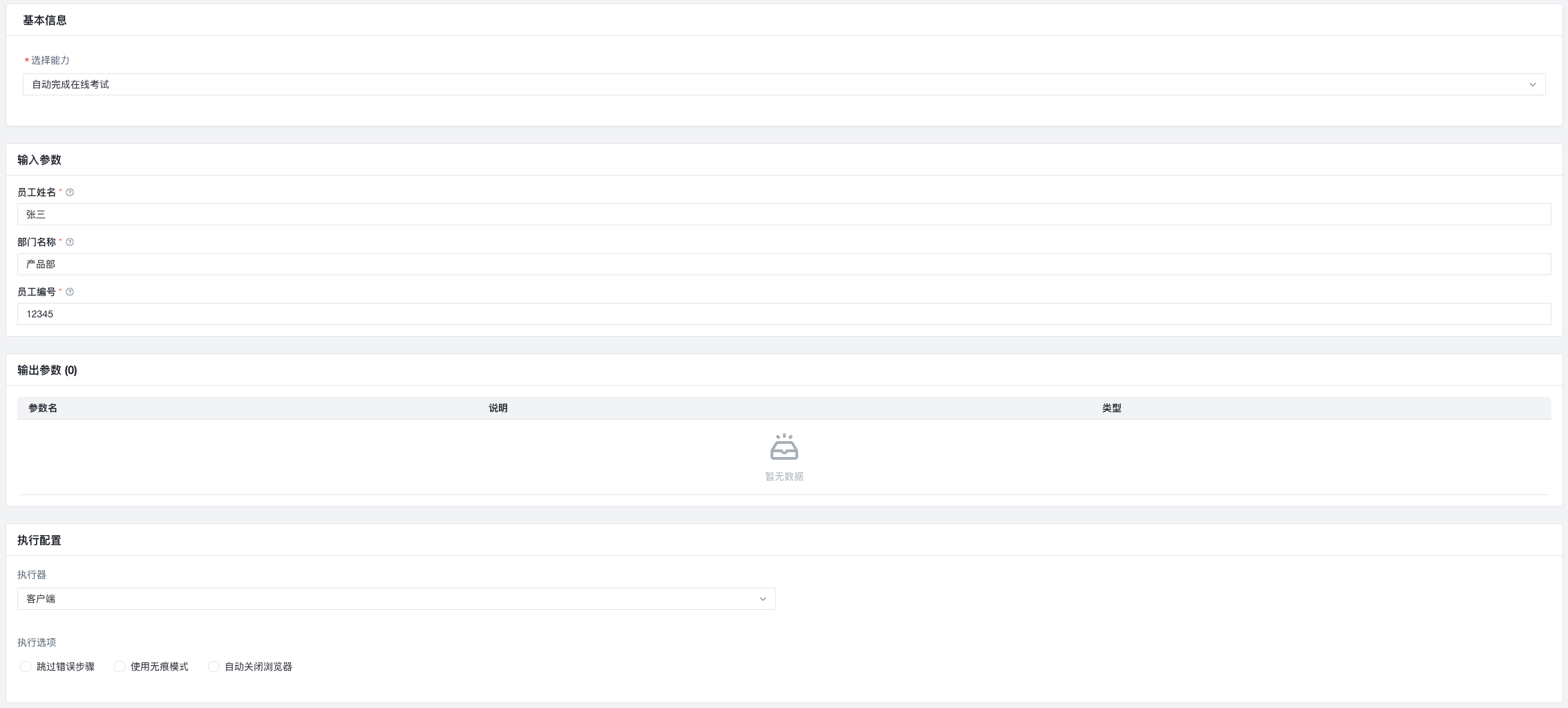
Input parameters:
Input parameters come from the capability definition. Fill them in according to the example for the current execution. Fields marked with a red * are required. Optional fields are filled automatically with their default values and can be changed.
Output parameters:
By default, output parameters come from the capability. Built-in output items cannot be removed; the Agent generates them during execution.
You can also define new output parameters inside a task. These extra outputs are generated after the task execution ends. Output parameter names must be unique, and the Description field should explain both the purpose and the generation logic so the model can produce accurate results.
Execution Configuration

- Executor:
Clientsends the task to the client most recently signed in under the current account. If you need aCloud Executor, contact sales to apply for access.
Advantages of the cloud executor:
- Reduces resource usage during large-scale execution
- Makes executor-side management easier and reduces client login maintenance
- No manual client installation required; web-based usage is also possible
- Model selection: choose the model used for task execution
- Use incognito mode: runs the capability in an incognito browser, avoiding the impact of logged-in state. Enabled by default.
- Skip failed steps: automatically skip a failed step and continue. Commonly used to bypass unstable login steps. Disabled by default.
In most cases, later steps depend on earlier ones. If one step fails, subsequent steps may also fail.
When this option is enabled, the final task status is always reported as success. Use it with caution.
- Close browser automatically: closes the browser after the capability finishes. Disabled by default.
- Send success/failure notifications: controls whether notifications are sent after the task ends. Enabled by default.
- AI takeover after failure: in takeover mode, the capability is treated more like a
Skillinstead of being executed strictly step by step. The system replans execution based on the accumulated experience in the capability. In most cases the execution is still similar to the original capability, but nested capabilities cannot be used during takeover.
Create an Exploration Task
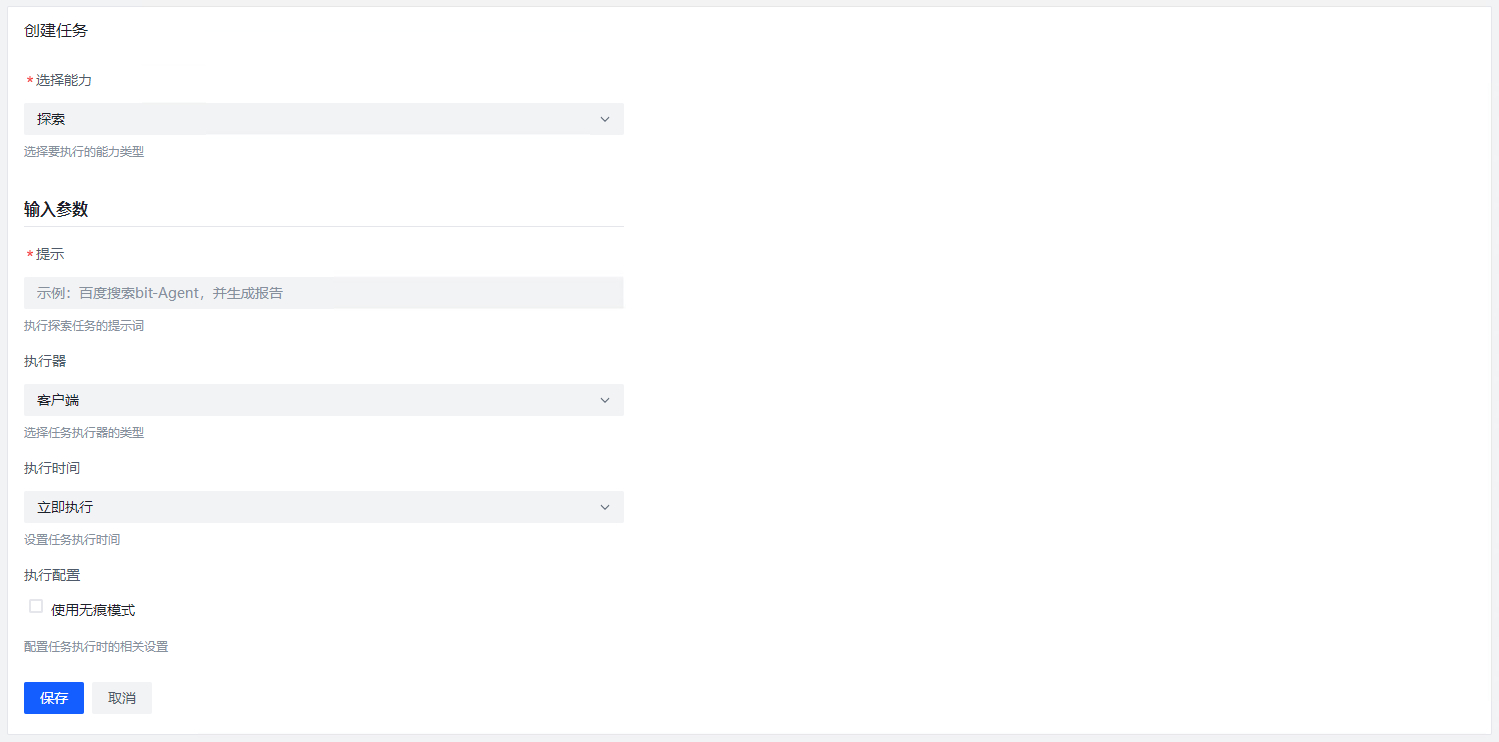
You can also create an exploration task by running the built-in Explore capability.
Unlike normal capabilities, exploration tasks do not have fixed steps. Before using exploration as a task, it is best to refine the prompt in normal exploration mode first to improve workflow accuracy.
Exploration tasks are better suited to cases where a fixed workflow cannot execute successfully and more flexibility is needed.
Task Execution
At present, tasks can only be executed on the client. During execution, a browser indicator appears in the sidebar.
There are three browser types:
- exploration browser
- capability browser
- privacy browser
The exploration browser is used for everyday work. In exploration mode, bit-Agent automatically reads information from the current exploration browser.
The capability browser and privacy browser are used to execute capabilities. Running a capability does not interrupt normal bit-Agent usage.
The capability browser shares the login state from exploration, which makes it useful for processes that require sign-in steps that cannot be fully automated, such as QR-code or SMS login.
The privacy browser starts fresh each time, which is more suitable for tasks that include a login process.
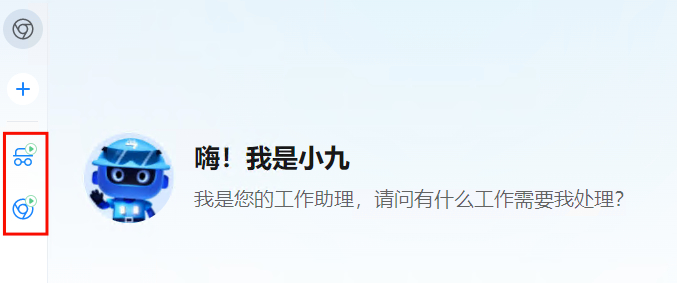
Each client can run at most one capability browser and one privacy browser at the same time.
Click the corresponding browser to inspect the execution status.
View Task Details
Click the Details button to open the task detail page.
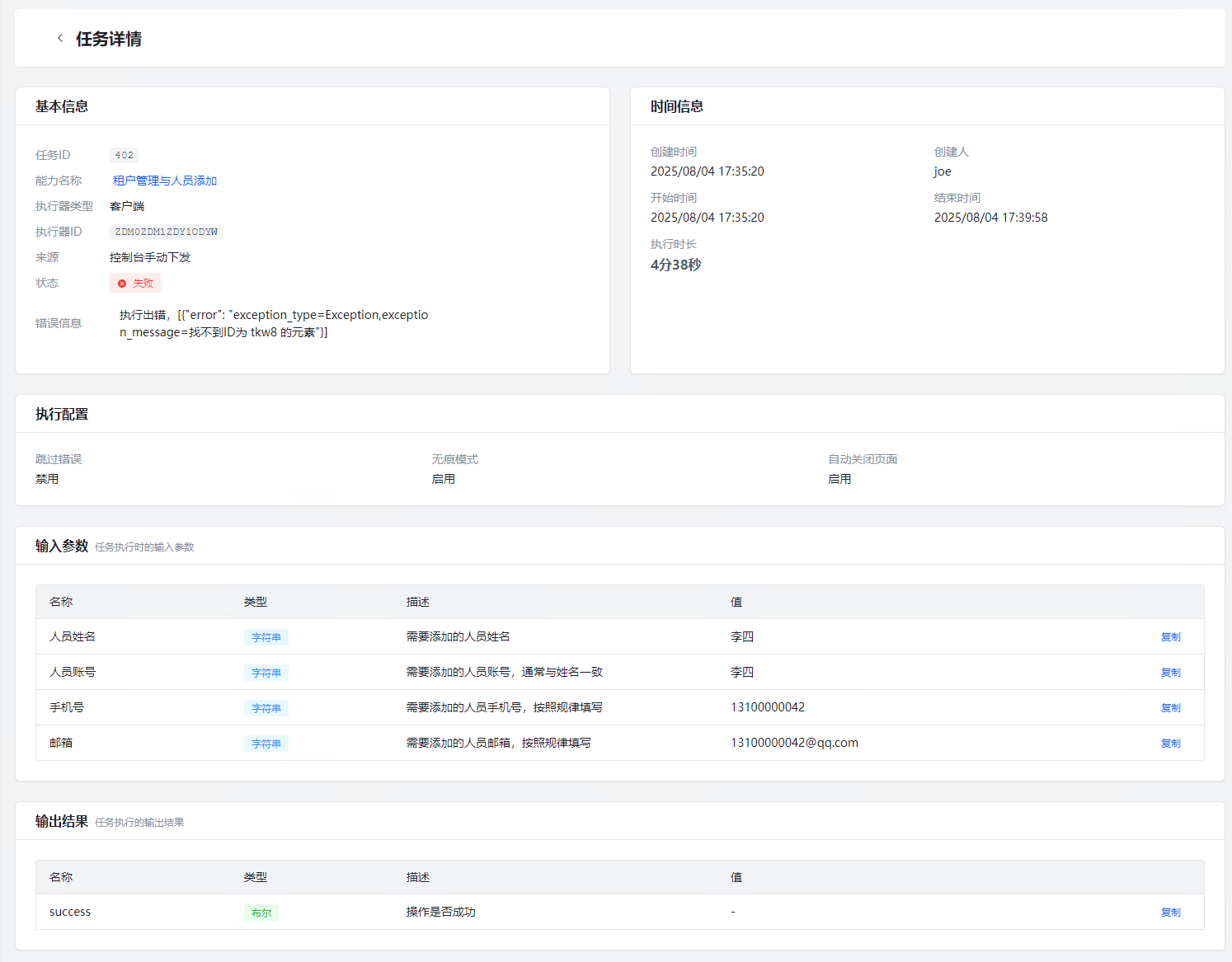
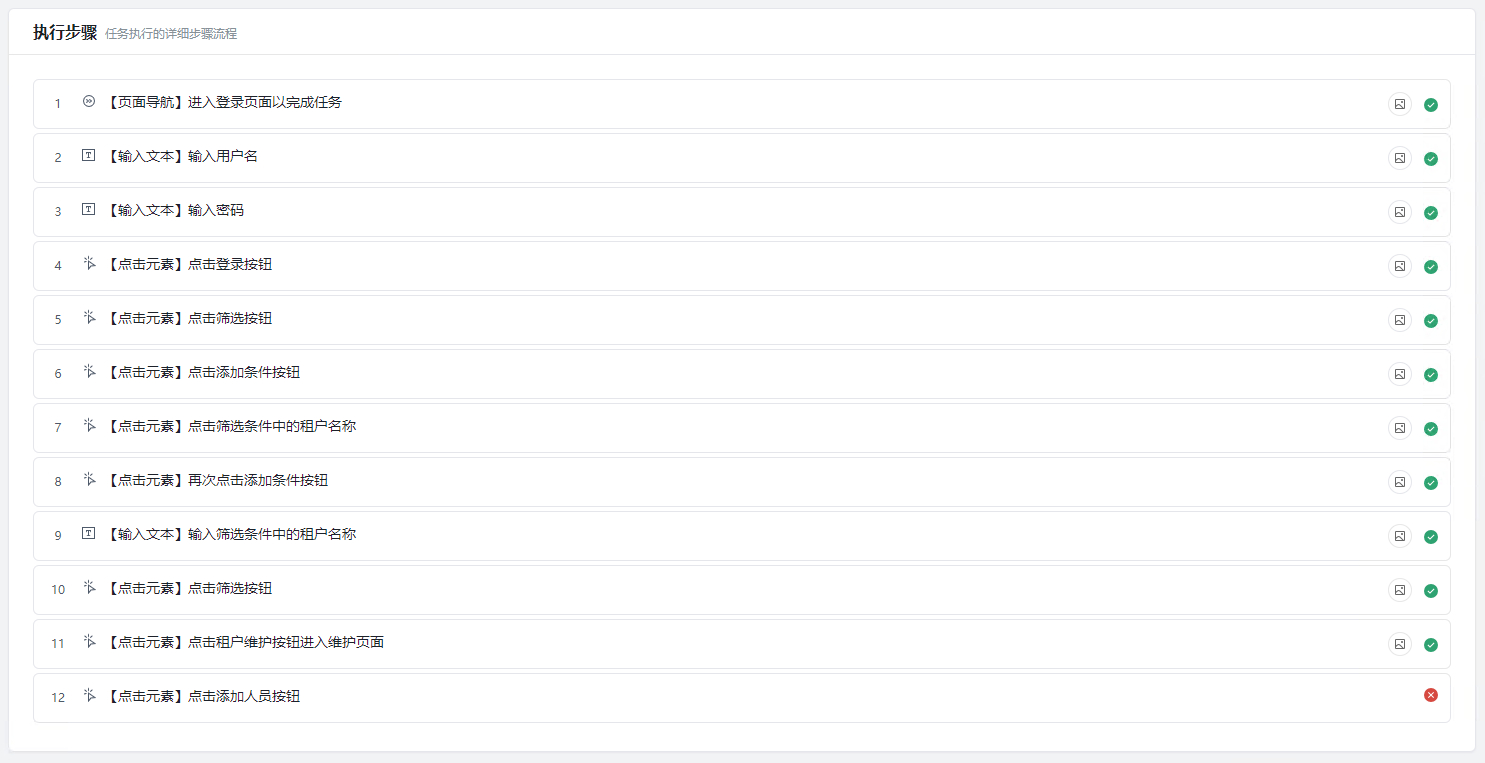
In the task detail page, you can view current task information and inspect the execution steps below.
Pause, Resume, and Stop Tasks
Pause and Resume
When a task is paused during execution, usually because it needs user input, you can resume it from the task detail page or from the link in the notification so the workflow continues from the interruption point.
This is useful when:
- temporary human confirmation is needed
- a human needs to take over to handle something like a CAPTCHA
- the workflow was interrupted by a network fluctuation
- you want to pause first, then continue after providing more information
Terminated State in Free Execution
In Free Execution tasks, the system introduces a terminated state.
When the Agent determines that the goal has already been achieved, or that continuing is unnecessary, it proactively ends the workflow and marks it as terminated.
Terminated usually means the workflow ended early in an expected and reasonable way.
Execute the Explore Capability
The Explore capability is a special built-in capability that can be understood as a capability without fixed steps. You provide a prompt and let bit-Agent explore by itself.
The default output of an exploration task is agent_message, which is the last conversational response produced by the model's plan. If actions such as Generate Capability or Generate Data are used during execution, their outputs are also appended to the final task output.
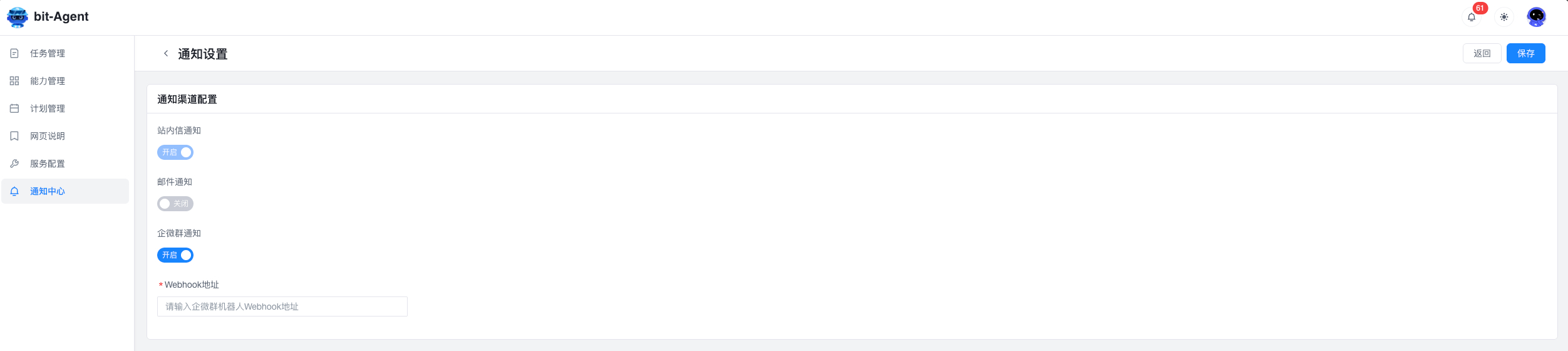
Task Notifications
Notifications are sent after task execution ends.
In-App Messages
Enabled by default and currently cannot be turned off. These are used to receive success or failure status inside the product.
Email
You can configure an email address in notification settings to receive task result emails.
WeCom Group Notifications
WeCom group notifications are supported. After configuring a webhook, task status updates can be pushed automatically to a WeCom group for team collaboration and follow-up.
Enable WeCom Group Notifications
WeCom group notifications can only be configured in group chats. If you want notifications sent only to yourself, create a group with at least three people first, then remove the others later.
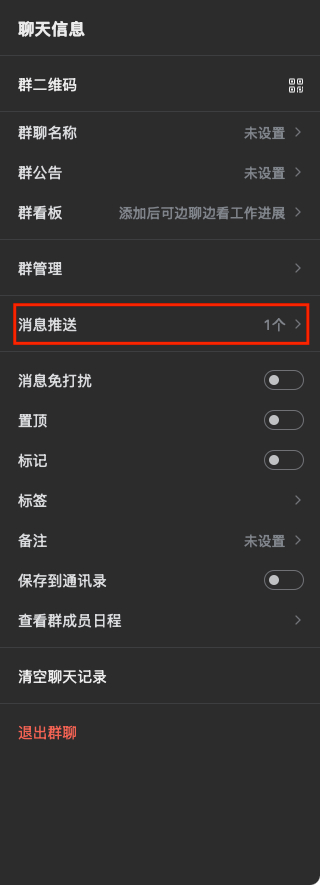
- Open the group chat panel and click the
···button in the upper-right corner.
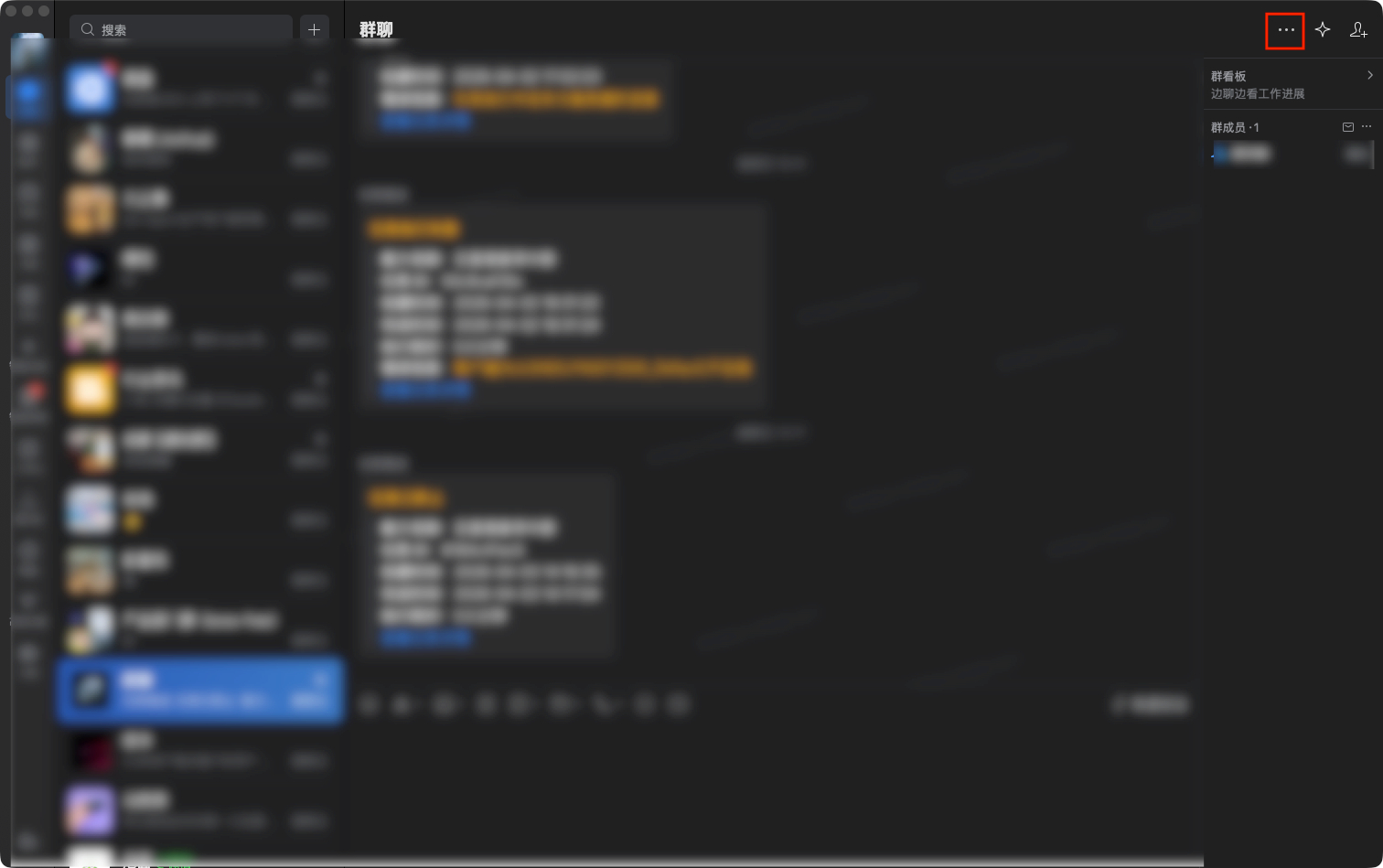
- Click
Message Push.
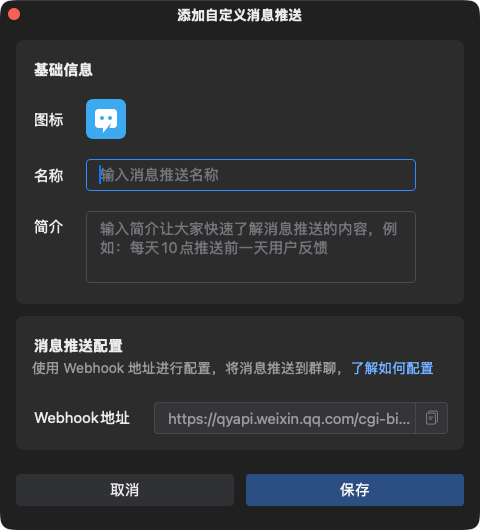
- Click
Add Custom Pushto open the push configuration page. There you can customize the message name and description, then copy theWebhookaddress. Keep this address safe and do not expose it publicly.
- Configure this address in notification settings. Future task updates can then be sent to you automatically.