Tool List
General Tools
Wait
Description
Pauses execution for a specified amount of time so the page can finish loading or another operation can complete.
Execution Logic
- Read the
wait secondsparameter; use the default value of 5 seconds if empty - Validate the range, which is 1-5 seconds
- Block the current workflow while counting down
- Return success when the timer ends and continue to the next step
Main Uses
- Pause execution
- Wait for page loading
- Reserve time for the next step
Options
- Wait seconds: how long to pause, default 5 seconds, configurable between 1 and 5
Typical Scenarios
- waiting for a page to load
- waiting for an animation to finish
- reserving time for slow operations
- waiting for a user-requested duration
Session History Search
Description
Search and view your previous chat records, helping you quickly find topics you discussed before, review historical content, or continue an earlier discussion.
Main Uses
- Search historical chat content
- Browse recent chat records
- View a specified historical session
- View the context around a segment of conversation
- Quickly continue an earlier topic
Usage
- Enter nothing: browse recent history
- Enter keywords: search historical content that contains those keywords
- Specify a session: view a historical session
- View context: expand the content before and after a historical message
Typical Scenarios
- Find a topic you discussed before
- Review the previous solution
- Find a file, project, or name mentioned earlier
- Continue an unfinished discussion
- Browse recent chat records
Record Info
Description
Records key information on the current page. Compared with Record Page, this tool keeps less content and focuses only on the target information that matters.
Execution Logic
- Read
record targetandrecord contentto define what should be kept - Combine current page content with recent step context to extract key information
- Summarize and structure the result to avoid redundancy
- Save it into the session notes space and return the result for later steps
Typical Scenarios
- recording form data before clicking submit
- preserving data before automatic page navigation
- capturing important values such as verification codes or order numbers
- saving short-lived content
Visual Analysis
Description
Performs visual understanding on the current page, or analyzes a local image file.
Execution Logic
- If a local path or cloud image ID is provided, analyze the image
- Otherwise analyze the current browser or application page
- Combine the visual result with text context so the next step can make a better decision
Typical Scenarios
- the page structure is too complex for pure text-based targeting
- the next action depends on visual context
- image understanding tasks
Data Generation Tools
Generate Data
Description
Extracts and generates structured data from the current page and operation history. It supports values such as page fields, judgments, and other structured outputs in JSON format.
This is especially useful for extracting precise values such as CPU usage or today's stock price.
Execution Logic
- Read field definitions and target data types
- Extract candidate data from the current page, step history, and recorded information
- Normalize and validate values according to their declared types
- Return a JSON result, using explainable empty values when fields are missing
Generate File
Description
Generates files in formats such as xlsx, docx, or html from the current page state, recorded information, and the user's task requirements.
The information source comes from the current page plus data obtained through Record Info and Record Page.
Execution Logic
- Gather current page information and recorded content
- Choose the generation strategy based on
file type - Structure content according to the generation goal
- Save the file into the workspace and return its identifier
Generate PPT
Description
Automatically generates a PowerPoint presentation from page content and operation history.
Execution Logic
- Extract the theme, sections, and core points from the current context
- Plan the slide structure
- Write content into a PPT and produce a usable presentation file
- Save the file and return its identifier
Browser Operation Tools
Click
Description
Clicks a button, link, or other element on the page, just like a normal mouse click.
Execution Logic
- Locate the target element according to the selector and wait settings
- Click once when the element becomes available
- If the click is meant for a download, apply download handling
- Wait for navigation, popups, or refreshes to stabilize, then return the result
Double Click
Description
Double-clicks a target element and triggers the browser's double-click event.
Right Click
Description
Right-clicks a target element.
Input
Description
Fills text into an input box such as username, password, or a search keyword.
Execution Logic
- Wait for the input box to become visible and editable
- Focus the input box and clear the existing value
- Enter the new content
- Validate that the input took effect and return the result
Hover
Description
Moves the mouse over a target element to trigger a dropdown or reveal hidden content.
Select Option
Description
Selects an option from a dropdown or option list.
Execution Logic
- Locate the dropdown and confirm it is operable
- Match the option by text or value
- Trigger the change event
- Validate the final selection
Upload File
Description
Uploads a file through a web form.
Execution Logic
- Resolve the file ID or local path
- Locate the upload control and inject the file
- Observe upload progress or page feedback
- Return the upload result
Keyboard Input
Description
Simulates keyboard input such as Enter, Delete, Tab, arrow keys, and shortcuts.
Slider
Description
Drags a page slider to a specified value.
Execution Logic
- Locate the track and handle
- Map the target value to a physical position based on min/max range
- Drag the slider to the target position
- Validate the final value
Open New Page
Description
Opens a new browser tab with a specified URL.
Execution Logic
- Validate the URL format
- Create a new tab and navigate to the address
- Wait for the page to finish loading
- Return the result
Close Page
Description
Closes the current browser tab.
Switch Page
Description
Switches between open tabs.
This feature must be used as a dynamic step.
Go Back
Description
Returns to the previous page in browser history.
Go Forward
Description
Moves forward to the next page in browser history.
Refresh Page
Description
Reloads the current page and fetches the latest content.
Image CAPTCHA
Description
Recognizes and fills a simple image CAPTCHA automatically.
This version supports character-recognition CAPTCHAs and some simple arithmetic forms.

Limitations:
- currently available only in public-network environments, not in private deployments
- Chinese character recognition is not supported
Slider CAPTCHA
Description
Completes a slider puzzle CAPTCHA automatically.
Record Page
Description
Saves the full state of the current page for later analysis or reference.
This records all text information on the current page, so it is suitable when the entire page is important.
Extract Table
Description
Extracts a table from the current page into an Excel file.
This tool cannot currently be called directly during exploration. It is intended for manual use in step editing.
Print Current Page
Description
Prints the current page as PDF or image and saves it to the local workspace.
Local Operation Tools
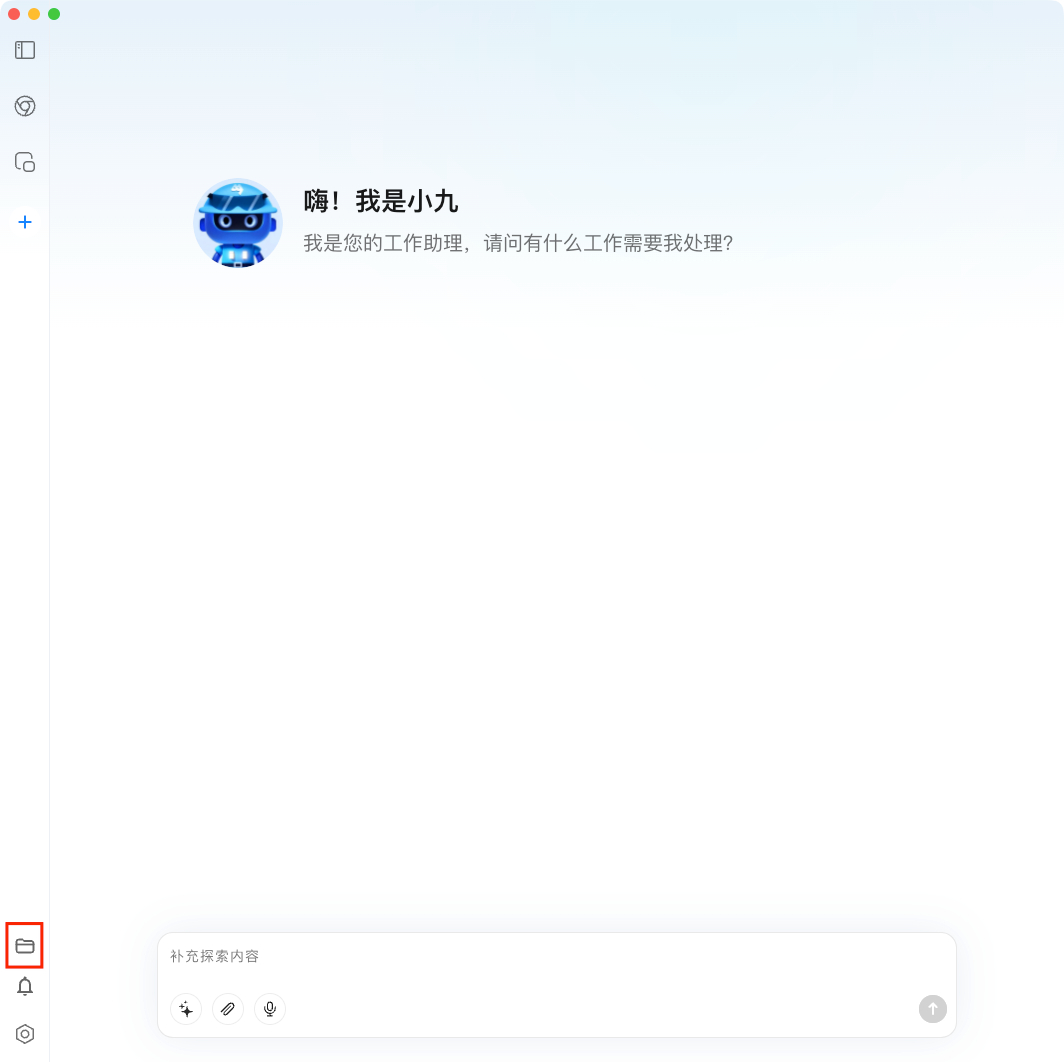
Corresponds to
bit_agent_v3.env.units.worker.local_command.
You can click the button in the figure below to open the default folder used by local tools:
For security reasons, file deletion is not currently supported.
Read File
Description
Reads file contents or lists directory information, with support for text extraction from many file types.
Main Uses
- read text files such as
.txt,.md,.js,.py - read text from office files such as
.pdf,.docx,.xls,.xlsx - list files and directories
- read large files in chunks
Write File
Description
Writes content to a file, with both append and overwrite modes.
Edit File
Description
Precisely replaces text inside a file, similar to find-and-replace.
Execute Command
The Execute Command tool can access your local command line environment. Use it carefully.
Description
Runs shell commands on the user's machine for system operations and automation tasks.
If the command involves high-risk behavior, the system pauses and asks for your approval before continuing.
Typical Scenarios
- search files:
find . -name "*.py" - inspect directory contents:
ls -la - install dependencies:
pip install requests - perform git operations:
git status,git commit -m "message" - run tests:
pytest tests/ - view system information:
uname -a,df -h
Usage Tips
Recommended Workflow
- Choose the right tool
- Fill in the required options
- Confirm the parameters
- Execute the automation step
Notes
- make sure the target element has loaded
- use reasonable wait times
- record important information promptly
- when an operation fails, the system may attempt automatic repair