Bid Document Review Plugin
This is a built-in bit-Agent plugin for reviewing bid documents against the evaluation criteria in tender documents and generating itemized results and reports.
The tender document provides the evaluation basis. The bid document provides the response content and supporting evidence. The plugin organizes file preparation, criteria calibration, evidence review, evaluation, and report generation into one continuous process.
The Bid Document Review Plugin is currently in beta and is not yet publicly available to all users. Contact customer service to obtain the plugin distribution link. The plugin is free during the beta period.
✨ What It Can Do
🏢 For Tendering Parties: Review Bid Documents
Check, item by item, whether a bid document meets the qualification requirements, compliance requirements, and scoring rules in the tender document, while locating the corresponding evidence and items that need further review.
🔍 For Bidders: Check Your Own Bid
Before finalizing a bid, check it against the tender requirements to identify missing materials, incomplete responses, inaccurate evidence pages, or issues that may affect the score.
🤝 How to Use the Plugin
The Bid Document Review Plugin helps reduce the effort required to browse documents and check requirements item by item. It does not replace your professional judgment. You can control the review scope, criteria, evidence pages, and result review priorities according to the objective of each task.
The plugin supports two complementary ways of working:
- Plugin workbench: Upload files, create tasks, view pages, edit criteria, adjust evidence pages, and view reports.
- bit-Agent conversation: Send a natural-language request such as “I want to review a bid document” to invoke the plugin. You can also ask bit-Agent (Xiaoji) to start processing stages, query or modify task data, and analyze current results.
File upload and task creation are completed in the plugin workbench. After a task is created, criteria extraction, evidence collection, review, data queries, and report generation can be performed through the workbench or a bit-Agent conversation.
Open from the plugin workbench:

Invoke with natural language:

🧭 Review Task Flow
A complete review task usually includes the following stages:
| Stage | Main work | What you can do |
|---|---|---|
| File upload and task creation | Upload the tender document and bid documents to create a review task. | Set the task name and confirm file types, quantities, and upload status. |
| Document map construction | Parse file content, pages, and chapter structure to build a navigable document map. | View file processing progress, chapter structure, and page summaries. |
| Criteria extraction | Extract requirements, evaluation criteria, and scoring rules from the tender document to create draft criteria. | Check the source and content, delete items that are not needed, add missing items, and edit criteria and item types. |
| Evidence collection | Locate relevant materials and PDF pages in the bid documents based on the current criteria. | Check the related files, add, remove, or adjust evidence page ranges, and provide reasons when evidence cannot be located. |
| Review execution | Form an evaluation conclusion for each item based on the confirmed criteria and evidence ranges. | Wait for progress and view passed, failed, scored, needs-review, and failed-processing items. |
| Result review | View the overall summary, item details, evidence citations, and review priorities. | Open the original pages to verify conclusions, or review all or selected items again. |
| Report generation | Organize the current review results into an HTML report. | Preview, open, or download the report; regenerate it after results are updated. |
Criteria are extracted from the tender document in full by default, but you can adjust the scope and rules according to the task. For example:
- If you uploaded only the technical response, you can delete criteria related to the business response and pricing response.
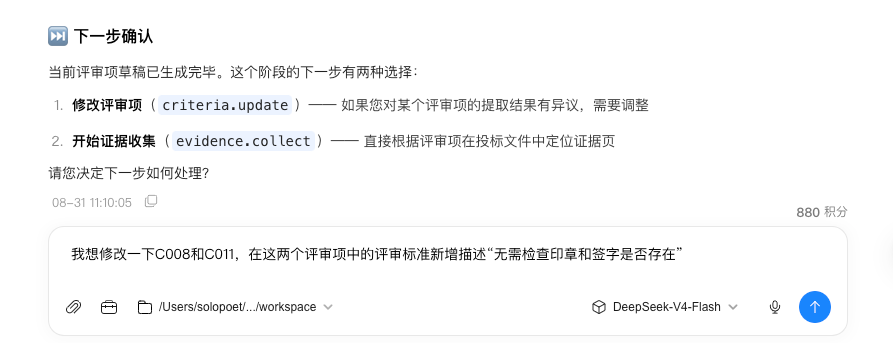
- If you only need to check whether the content covers the tender requirements, you can edit the criterion details and specify that “checking the existence of seals and signatures is not required for this task.”
- You can delete items outside the scope of this task and manually add requirements that were missed in extraction.
🌟 Key Features
- Controllable scope: Adjust criteria, evaluation standards, and evidence pages according to the task objective.
- Reviewable process: Each stage is displayed independently, allowing you to confirm it before moving to the next stage.
- Traceable evidence: Conclusions are linked to pages in the bid document, making it easy to verify the source.
- Human-AI collaboration: AI organizes and analyzes the materials, while you confirm and control the task through the workbench or a bit-Agent conversation.
🚀 Quick Start
- Open the “Bid Document Review Plugin” from the bit-Agent plugin workbench, or send a natural-language request such as “I want to review a bid document” in a conversation.
- Click “New Review Task” in the plugin workbench.
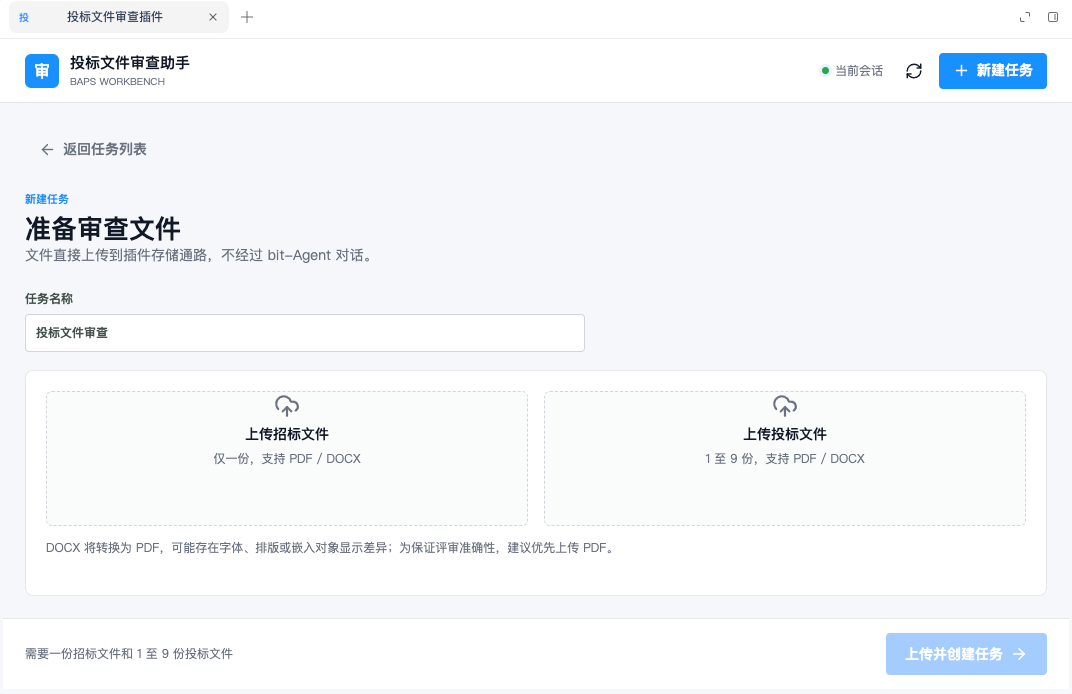
- Enter a task name and upload one tender document and at least one bid document.
- When all files show “Uploaded,” click “Upload and Create Task.”
- Wait for file preparation to finish, then view the document map and extract the criteria.
- Check and adjust the criteria, confirm them, and start collecting evidence.
- Check the evidence page ranges, confirm them, and click “Start Review.”
- View the review results. Review all or selected items again when necessary.
- Open the “Report” page to generate, open, or download the HTML report.
Each stage saves its current results. When you need to edit criteria or evidence page ranges, finish confirming the corresponding stage before starting the next one. Earlier stages may be locked after you move forward.
In addition to using the workbench, you can chat with Xiaoji to start processing, view or modify task data, and analyze current results. Xiaoji will explain the current state and available actions. You decide whether to start any operation that requires confirmation.
🧾 File Requirements
- Each task must contain one tender document.
- Each task can contain one to nine bid documents.
PDFandDOCXare supported for both tender and bid documents.- A single file cannot exceed
500 MB. - The total size of all files in one task cannot exceed
2 GB, and a task can contain at most 10 files. DOCXfiles are converted to PDF first. Conversion may cause differences in fonts, layout, or embedded objects, so PDF is recommended where possible.- Bid materials should remain complete, continuous documents. When business, technical, pricing, or other materials need to be submitted separately, upload them as multiple files in the same task.
🔎 Review Process
1. File Preparation
After a task is created, the system processes the files in the background, including format normalization, text extraction, page parsing, and document map construction. The file preparation page shows the stage, progress, page count, and status for each file. The “Extract Criteria” button becomes available after the tender document is processed.
After processing is complete, open the document map to view the file summary, chapter structure, page summaries, and page locations. Page numbers in the document map and file preview use the physical PDF page numbers.
2. Criteria Calibration
After you click “Extract Criteria,” the system generates a draft based on the evaluation method, qualification requirements, compliance requirements, and scoring rules in the tender document. The page usually includes the criterion number, stage, category, name, type, standard, score, and source page.
Check the tender document and edit the name, standard, stage, type, or score according to the task. You can also add supporting references, delete duplicate items, add missing items, or extract the criteria again. Click a source page to open the original tender document for verification.
After you click “Confirm Criteria and Start Collecting Evidence,” the current criteria become the basis for the next stage and are locked.
3. Evidence Page Range Review
Evidence collection locates relevant materials and pages in the bid documents for each criterion. On the “Evidence Page Range Review” page, check whether the related file, PDF pages, and page content support the criterion. When no evidence is found, provide a reason.
You can open the PDF preview on the right through the file or page entry, or edit the evidence page range. The saved range becomes the effective range for the current task.
Clicking “Collect Again” generates new evidence candidates and overwrites the current range. Confirm whether manually adjusted page numbers should be kept before using it.
After checking the evidence, click “Confirm All Evidence and Start Review.” The evidence range is locked after the review starts.
4. Review Results
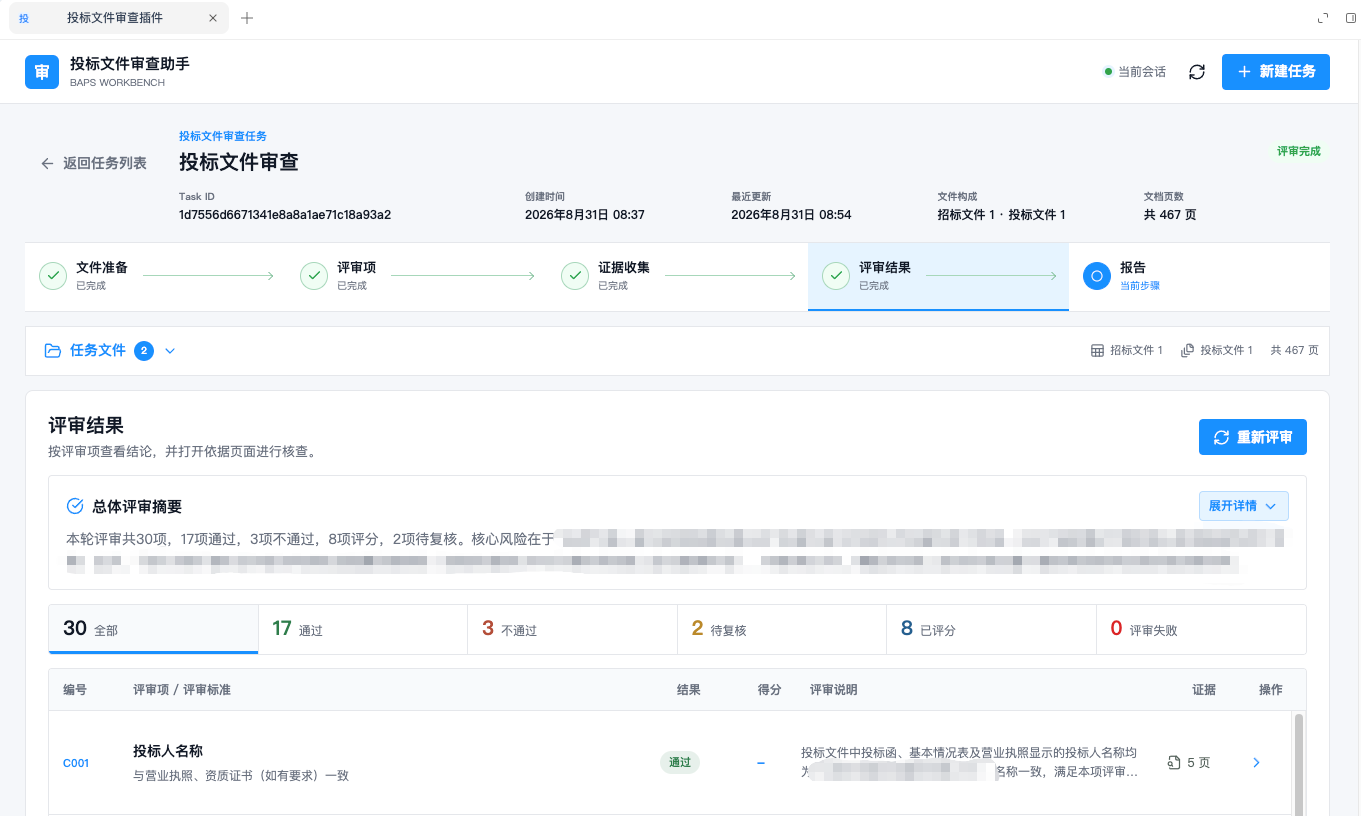
After the review is complete, open the “Review Results” page to view the overall summary and item details. You can filter results using the following statuses:
| ✅ Passed | ❌ Failed | 🔎 Needs Review | 🧮 Scored | ⚠️ Review Failed |
|---|---|---|---|---|
| Meets the review requirement | Does not meet the review requirement | Requires manual verification | Scored according to the scoring rules | Processing for this item was unsuccessful |
Open the details to view the conclusion, score, explanation, evidence chain, and cited pages. Click a cited piece of evidence to preview the original bid document page on the right.
You can review an individual item again when it needs a new judgment, or review all items again for a complete rerun. Re-reviewing does not generate a report automatically. Generate a new report separately after the results are updated.
5. Review Report
The current version provides reports in HTML format. Excel and Word reports will be supported in a future version.
📌 Workbench Buttons and Icons
Some actions are represented by icon buttons. Hover over an icon to see its name.
| Icon or entry | Purpose |
|---|---|
| Refresh icon | Reload the current task, execution status, and page data. It does not start an upload or processing task again. |
| Document map icon | View the file chapter structure, page summaries, and page locations. |
| Eye icon | Open the corresponding file or PDF page in the file preview area on the right. |
| Reprocess / file upload icon | Retry file processing, or upload and replace an invalid file. |
| Edit / delete icon | Edit or delete unlocked criteria, or edit the evidence page range. |
| Re-review icon | Run the review again for all or selected items. |
📊 Execution Status and Error Handling
File processing, criteria extraction, evidence collection, review, and report generation run in the background. The task page displays the current step, progress, and status:
- “Waiting” or “Queued” means the task is waiting for execution resources.
- If document map construction fails, you can run it again. If the source file is invalid, upload and replace the file.
- “In Progress” means background processing is underway.
- “Processed” or “Completed” means the stage has finished.
- “Needs Processing,” “Needs Retry,” or “Failed” means you should process the file or run the stage again according to the page instructions.
You can click “Cancel” in the execution status bar to cancel a running long task. Cancellation only affects the current processing and does not delete uploaded files or saved task data.
If the page says that data is being updated by another entry point, wait for the current processing to finish and click the refresh icon. Do not click the start button repeatedly.
If the page says “Workbench connection expired,” return to bit-Agent, close the current workbench, and reopen the Bid Document Review Plugin. The refresh icon on the current page only refreshes task data; it does not restore an expired workbench connection.
✅ After the Review
On the “Review Results” page, check the “Failed,” “Needs Review,” and “Review Failed” items and their cited pages before generating a report. After the report is generated, you can open the HTML report or download and distribute it.
⛔ Cancel a Task
If the current processing no longer needs to continue, click “Cancel” in the execution status bar. Background processing will stop, while uploaded files and saved task data remain available.
❓ FAQ
Must a task be completed in one session?
No. The task and stage results are saved, so you can reopen the task from the task list later.
Can I close the workbench while a task is running?
Yes. The background task continues running. When you reopen the task, click the refresh icon if the data has not updated.
Why is a button disabled or data not editable?
The prerequisite file may not be ready, the current stage may be running, the data may be updated by another entry point, or the stage may already be locked. Follow the page instructions, wait, and refresh when needed.
What does “Needs Review” mean?
It means the evidence or conclusion still needs manual verification. It does not necessarily indicate a system error. Open the details and cited pages to verify them.
What should I do if the workbench connection expires?
Return to bit-Agent, close the current workbench, and reopen the Bid Document Review Plugin. Completed task data is still based on the results saved by the service.
🌱 Usage Tips
- Prefer PDF to reduce page differences caused by DOCX conversion.
- After file preparation is complete, check the document map to confirm that the chapter and page structure is generally correct.
- Do not accept extracted criteria without checking them. Verify the source pages and evaluation standards first.
- Do not look only at the number of evidence pages. Open key pages item by item to confirm that the materials actually support the requirement.
- Check “Needs Review” and “Review Failed” items separately. Do not treat them as passed or failed without verification.
- Generate the report after confirming the review results to avoid a report that is inconsistent with the latest results.
- Avoid repeatedly clicking the same start button while a background task is running. Use the page's “Collect Again” or “Re-review” entry when a stage needs to be run again.
🔄 Continuous Improvement
The Bid Document Review Plugin will continue to improve its functionality and user experience. If you have new requirements, suggestions, or issues while using it, please contact us at any time. Your feedback is very helpful for improving the plugin.