Remote Control with WeChat
bit-Agent can be linked to an official WeChat account so you can control your machine remotely from your phone.
Bind a Machine
After installation, open the Settings page and locate the official WeChat account binding feature.
- Click
Bindto open the QR code. - Scan it with WeChat.
- Follow the official account. Once you follow it, the binding completes automatically. You can then control your computer through chat. It can do the same work that is available in the bit-Agent client, so try sending a message.

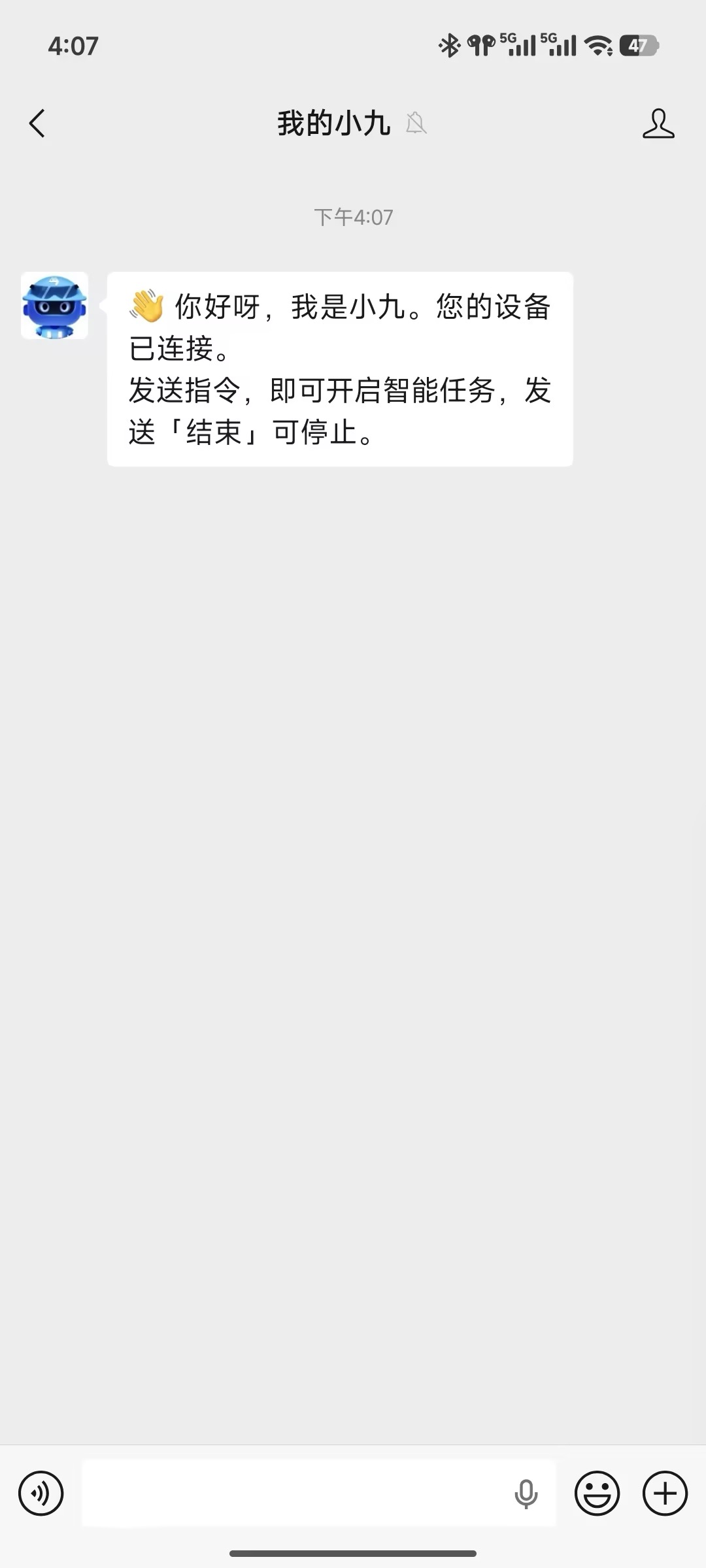
Remote Control
You can control the computer remotely through a WeChat conversation.
Live Progress
When a task starts, the official account first replies with an In Progress status and includes a web link. You can open that link to view the live progress.
The first time you open it, you may need to sign in.
Follow-Up Questions During Execution
If the workflow needs additional information from you, such as confirming an option, filling in a parameter, or confirming whether to continue, the Agent will ask in WeChat.
Just reply directly in the official account chat, and the task will continue from where it stopped.
For safety, we provide some special keywords:
- Send End to stop the current workflow.
- Send New Session or New Conversation to forget recent history and start a brand-new conversation.
Short-term memory in the official account conversation lasts 6 hours. Conversations within that 6-hour window can continue naturally.
Pin It to the Conversation List
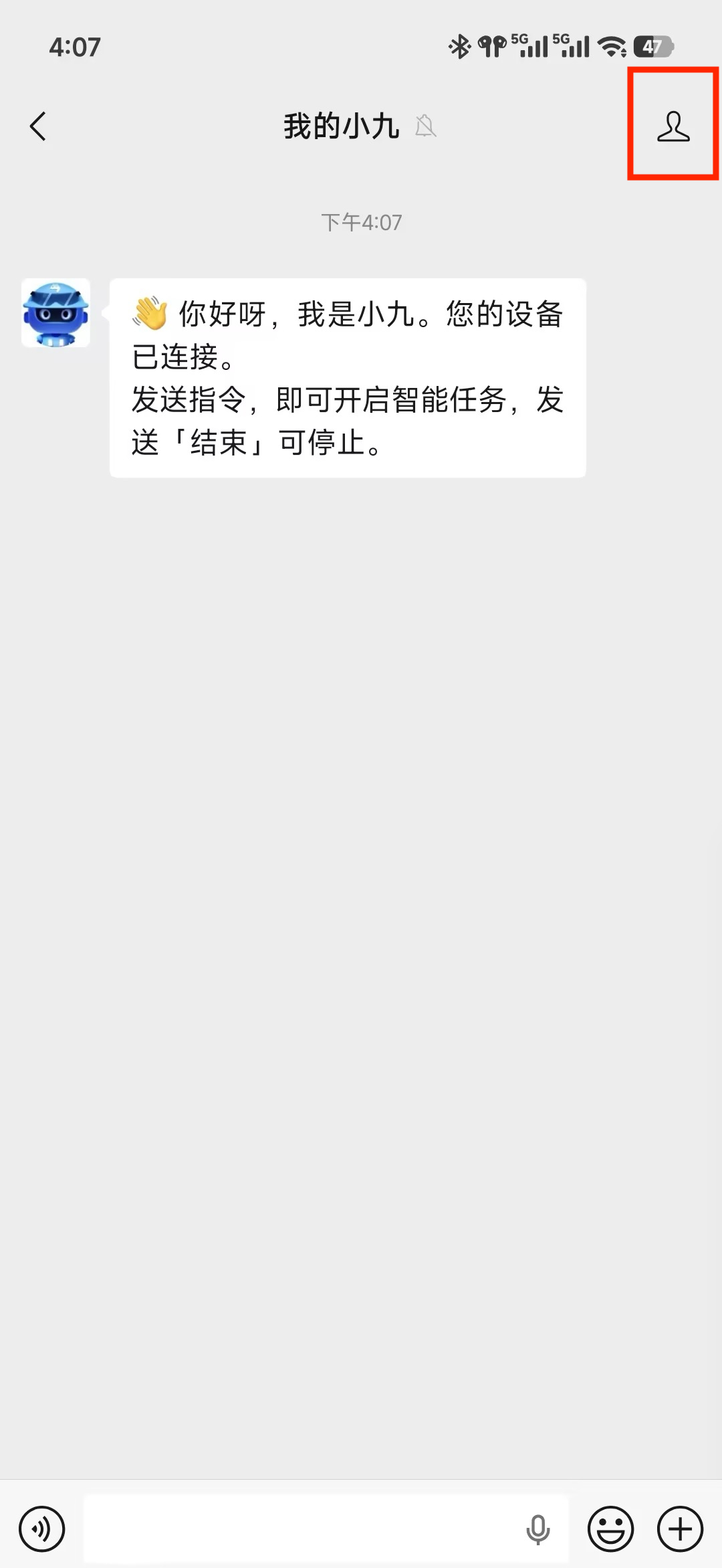
Open My Xiaoji and click Manage in the upper-right corner.
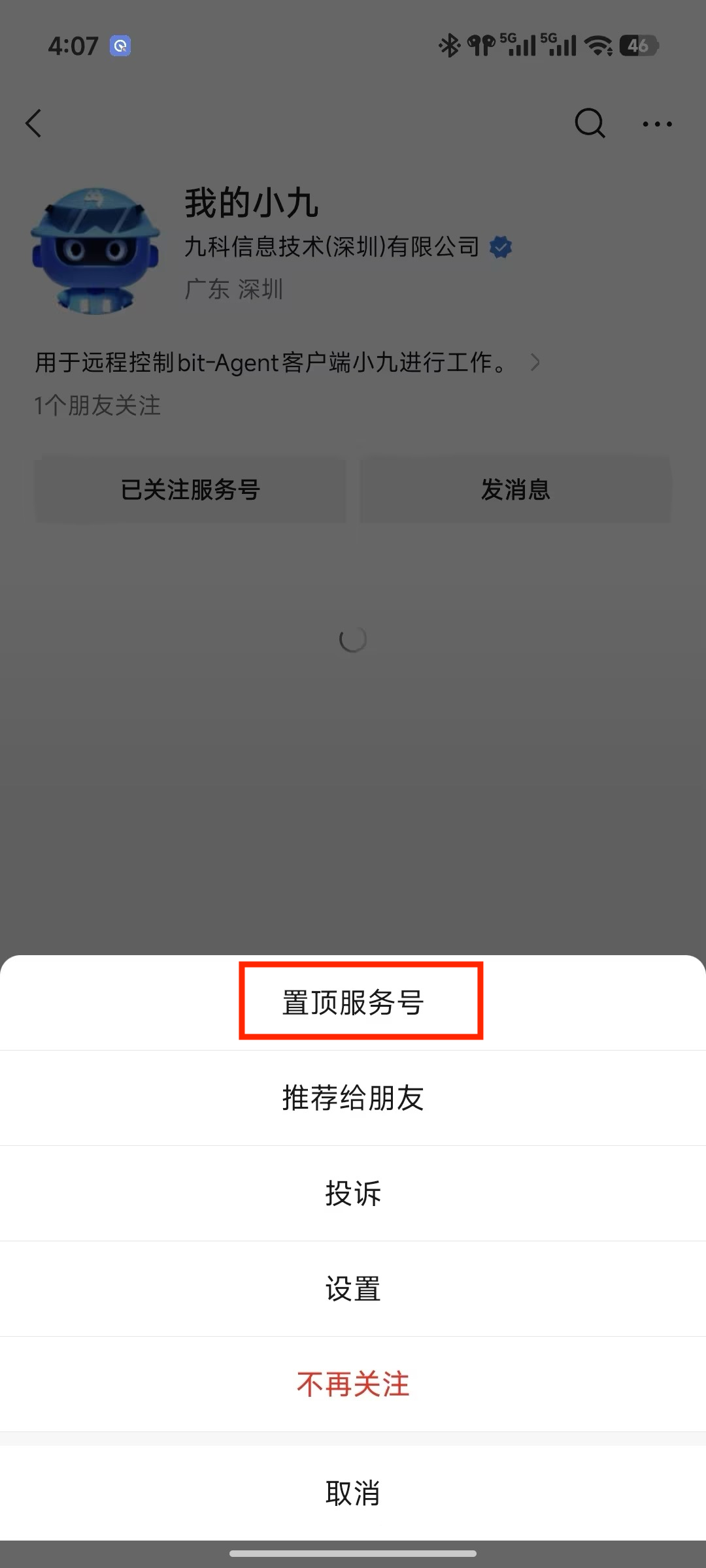
Click Pin Service Account and you will see My Xiaoji in your conversation list.