From Exploration to Capability
Why Generate a Capability?
In exploration mode:
bit-Agent helps you complete a task once
But if you do not generate a capability:
- you have to explore again next time
- the steps are not fully controllable
- the result is not reproducible
After generating a capability:
you get a stable workflow that can be executed with one click
| Exploration | Capability |
|---|---|
| One-time | Reusable |
| Unstable | Stable execution |
| Relies on AI improvisation | Follows a strict process |
Step 1: Click Generate Capability
Once you confirm:
- this exploration workflow is correct
- the steps are what you want
click:
Generate Capability

Step 2: Review or Fine-Tune the Steps
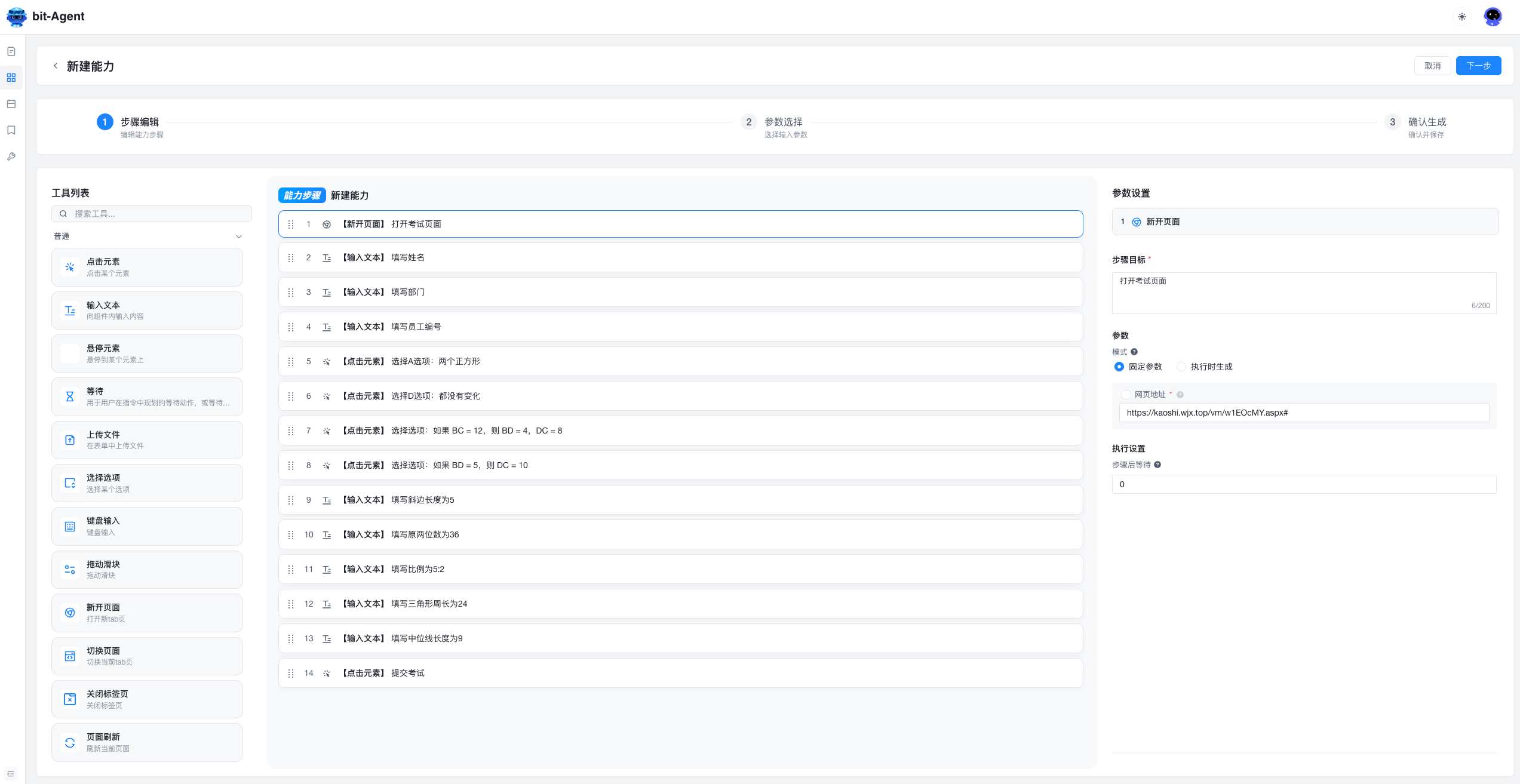
After clicking, you enter the Create Capability page.
Here you can:
- review all steps generated from the exploration
- delete, adjust, or fine-tune steps
If you change nothing:
the default behavior is to repeat exactly the same operations and inputs next time
That means it will:
- click the same buttons
- type the same content
- follow the exact same workflow
Step 3: Auto-Generate Capability Metadata and Save
When you click Next:
bit-Agent automatically generates:
- capability name
- capability description
- input parameters
- output parameters
This may take a little time. Please be patient.
When it finishes:
click
Save
and you now have a reusable capability
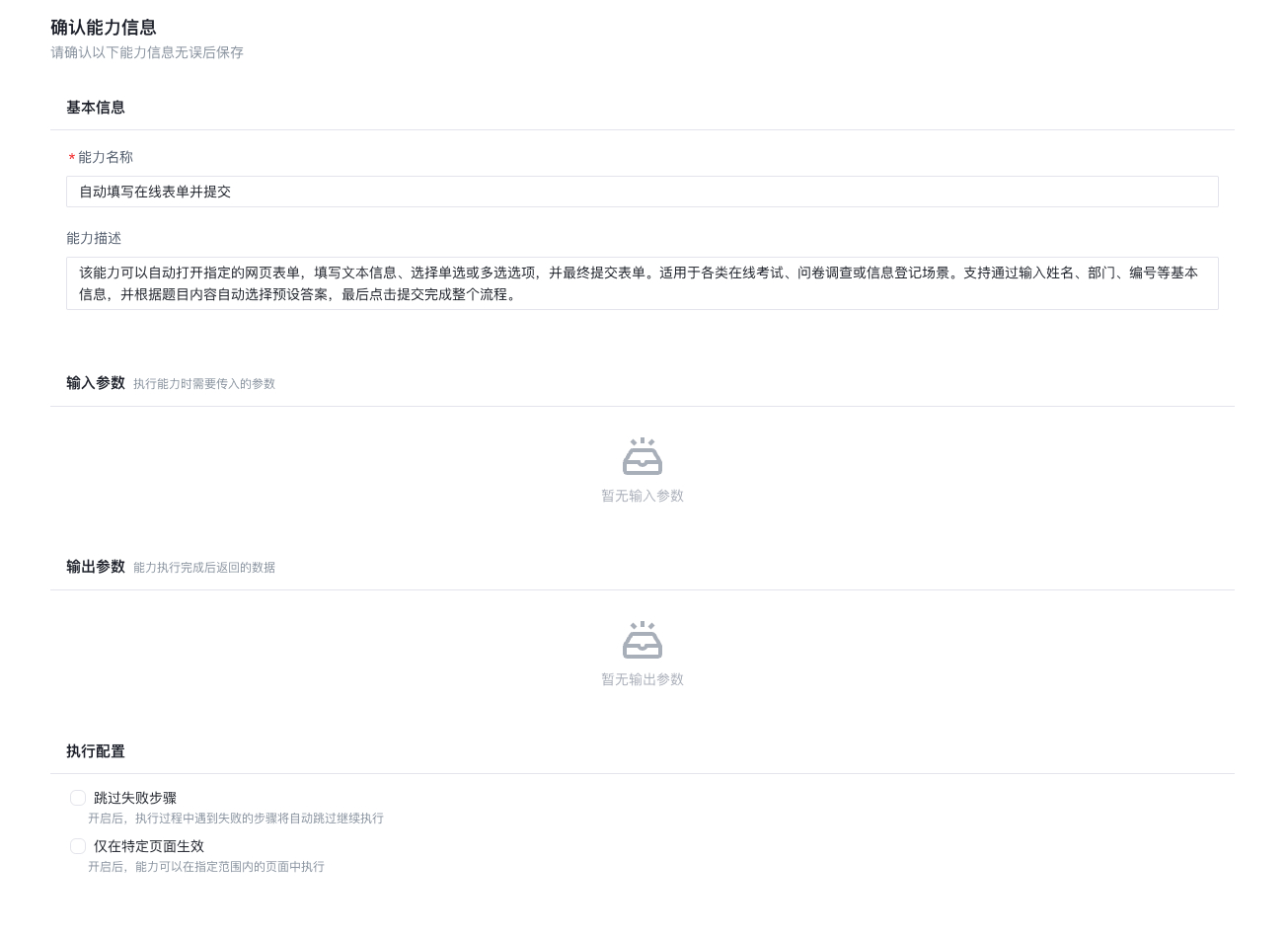
After step editing is complete, click Next. bit-Agent will generate the related capability information automatically based on the steps. This process may take some time.
After the generation finishes, click Save and the capability is ready to use.
A capability includes the following parts, all of which can be edited if you are not satisfied:
- Capability name: the name shown in the capability list
- Capability description: explains what the capability does
- Input parameters: values that may change each time the capability is used. If a parameter does not need to change, you can turn off
Requiredso the default value is used. - Output parameters: values produced by actions such as Generate Data, Generate File, or Generate PPT
After editing, confirm the capability generation and you will have a workflow that can be executed quickly.
Use the Generated Capability
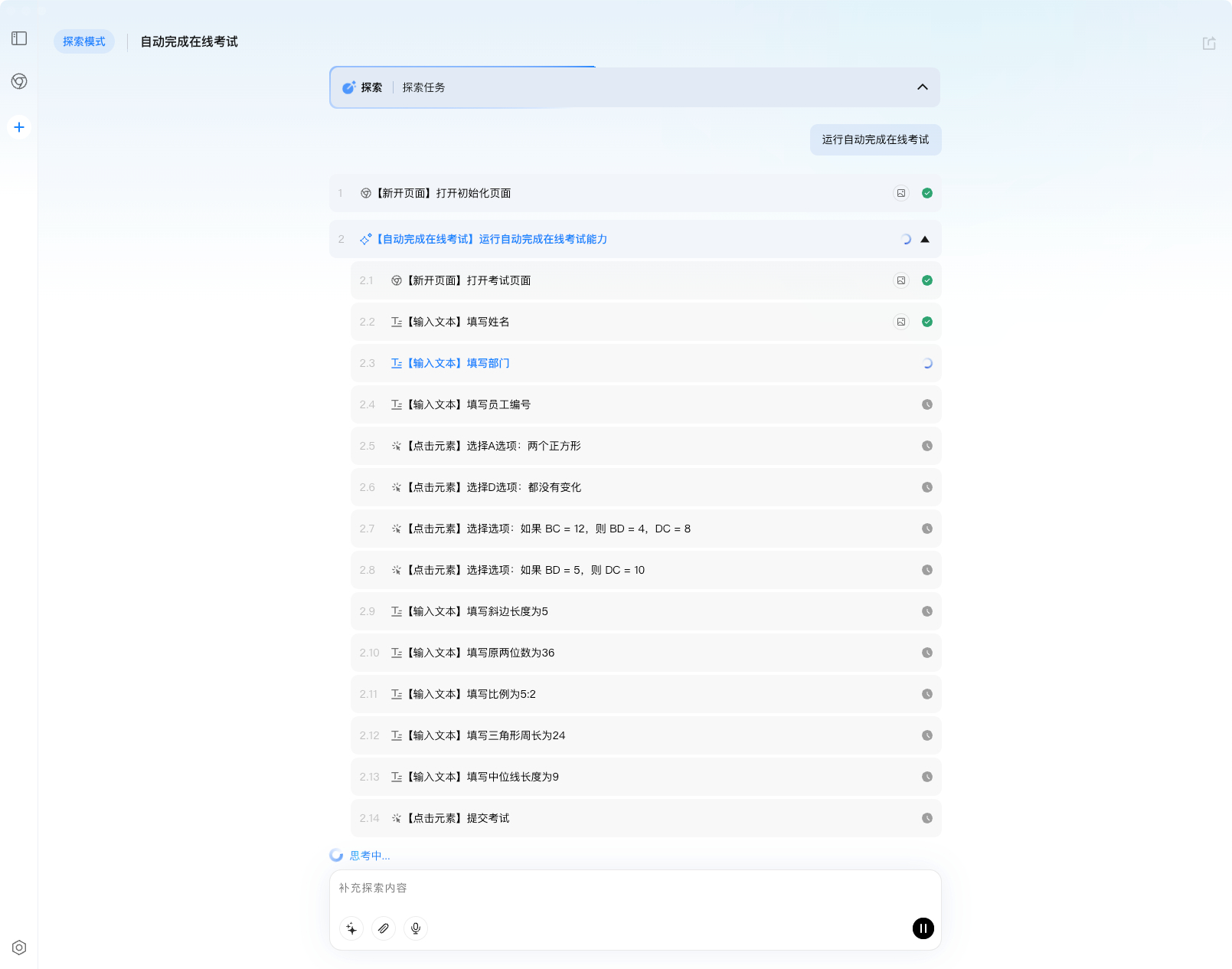
Suppose the generated capability name is Automatically Complete Online Exam. Open a new conversation and enter:
Use the Automatically Complete Online Exam capability
bit-Agent will start executing automatically.
Capabilities can also be used in the console. See Task Management.
During capability execution, the page may change slightly. In that case, bit-Agent can automatically detect the issue and perform AI repair to keep the execution going.
A Problem You May Already Notice
On the next run,
the name, department, and employee ID are still your own.
If you share this capability with someone else:
they would fill forms using your personal values
That means:
the capability is not generic enough yet
Next Step: Parameterize the Capability
In the next chapter, you will learn how to:
- change fixed values into inputs that are filled each run
- turn the capability into a template capability that anyone can use
Next: Turn a Capability into a Template: Edit Capability Parameters