Conversation Page
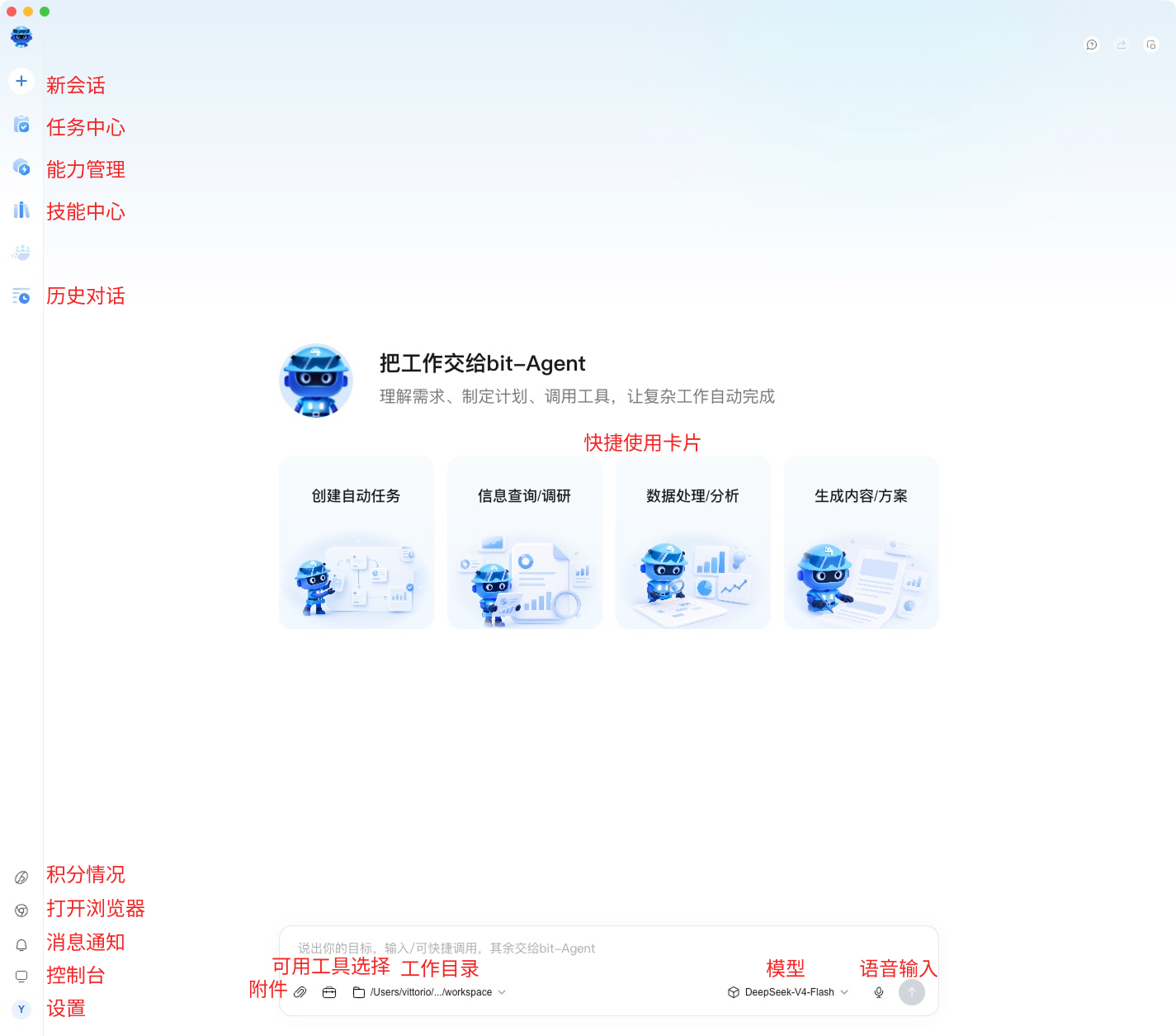
The conversation page is the main entry point for using bit-Agent.
Here you can chat with the Agent, execute tasks, inspect steps, download files, and manage conversation history.
Floating Window Mode
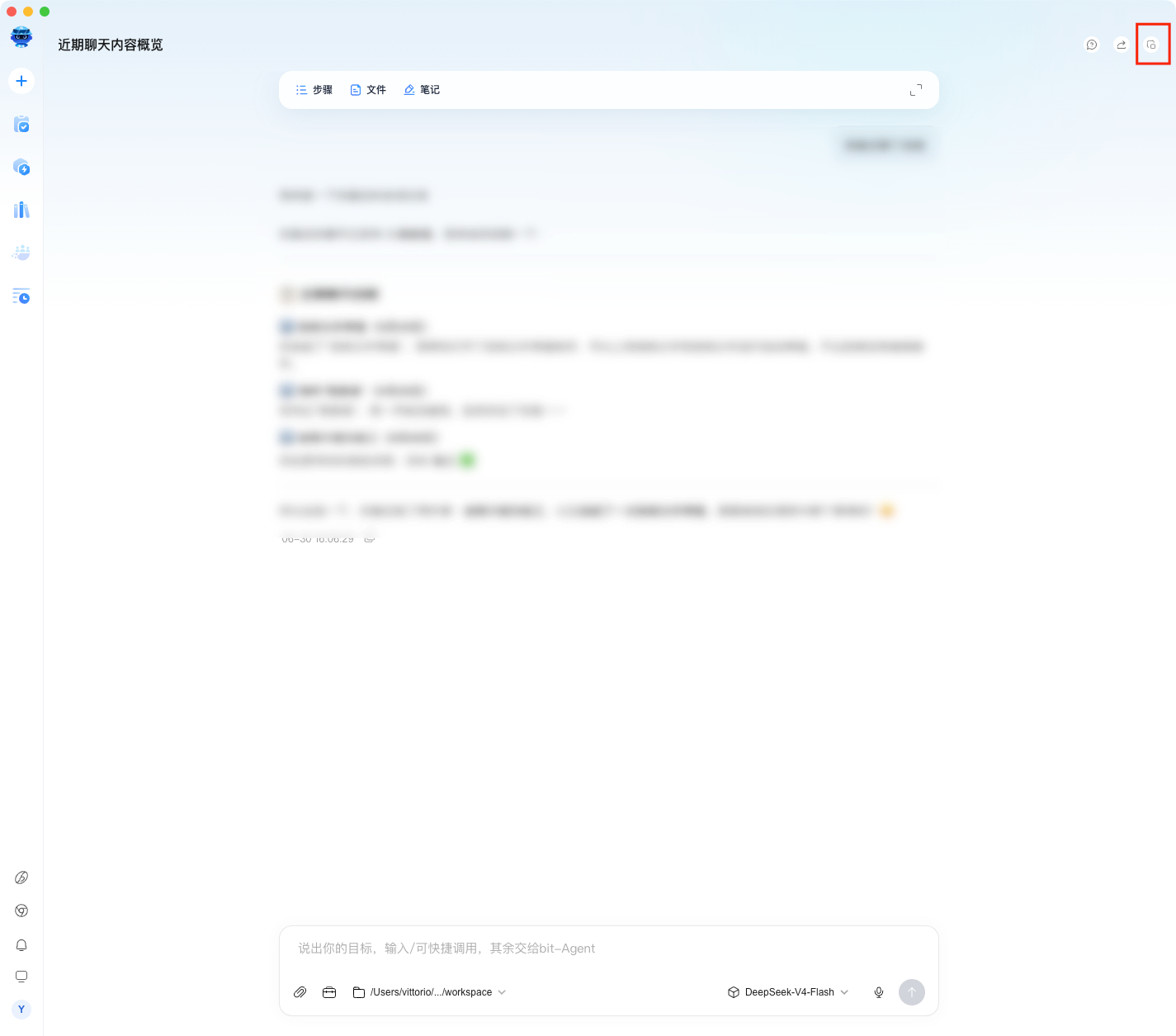
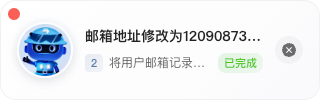
Click Floating Window Mode to collapse the Agent so it can keep running tasks in the background.
Upgrade Prompt
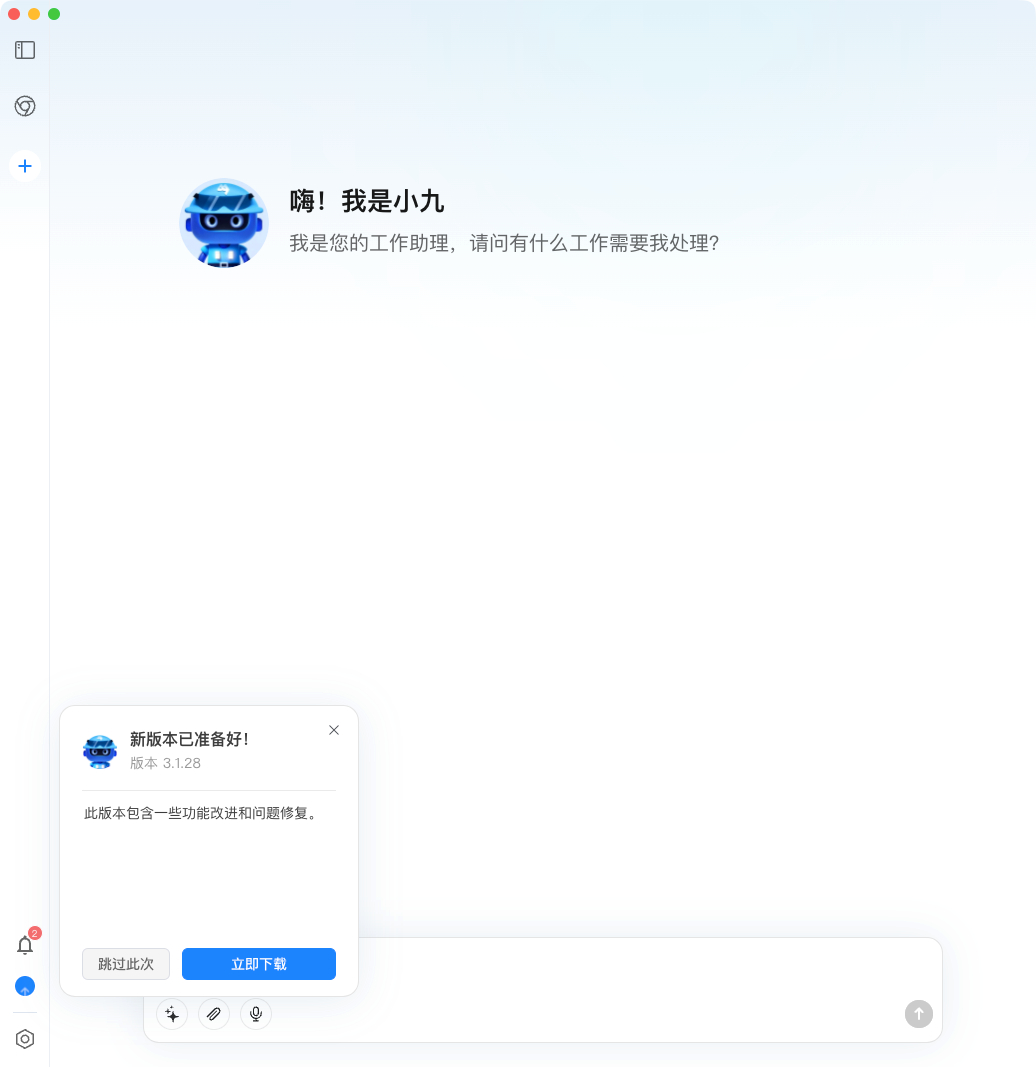
When a new version is available, an upgrade prompt appears in the lower-left corner.
- Click it to download and install the latest version
- The client closes automatically during installation
- It is best to upgrade when no task is currently running
If you are in the middle of an important task or conversation, wait until it finishes before upgrading.
Notifications
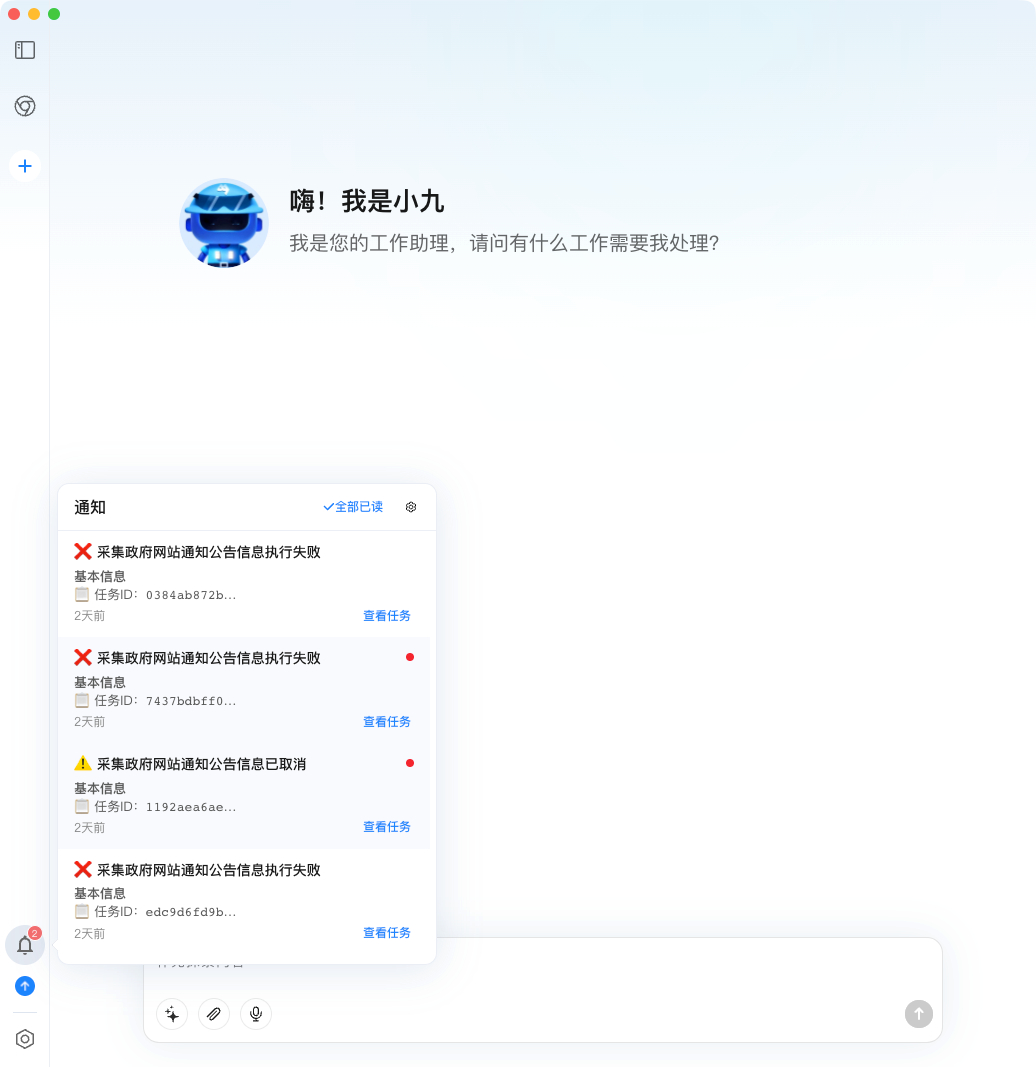
The lower-left corner also contains the notification center. When you launch tasks from the console, completion or failure notices appear here so you do not need to watch the execution the whole time.
You can change notification settings in:
Console -> Notification Center -> Notification Settings
Capability and Service Configuration
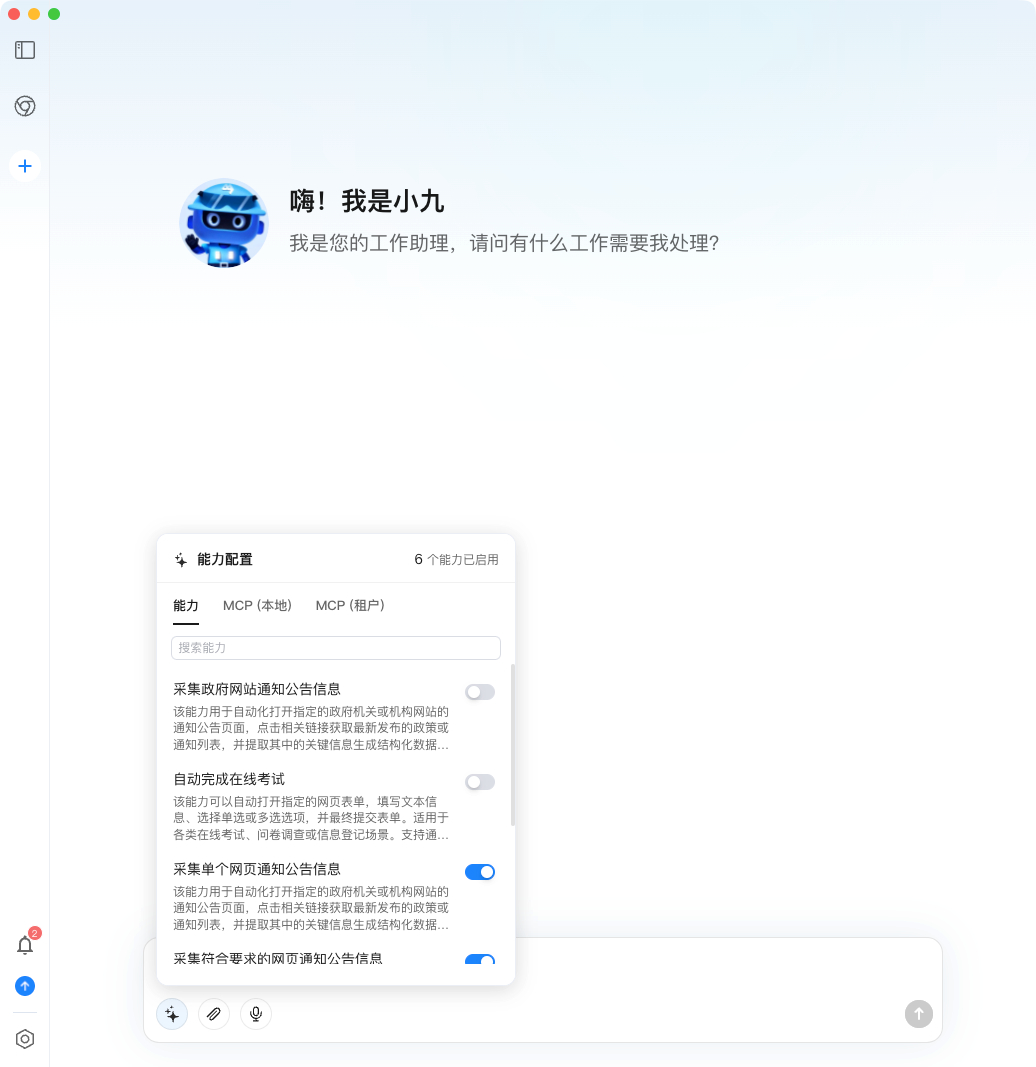
This panel controls:
which capabilities, services, and Skills the Agent can use during exploration
Why is this useful?
- If too many capabilities are available, the Agent may overthink
- Disabling unused capabilities makes execution more stable and controllable
You can:
- Keep only the capabilities needed for the current task
- Temporarily disable specific MCP services
- Re-enable them later without affecting existing capabilities
Workspace
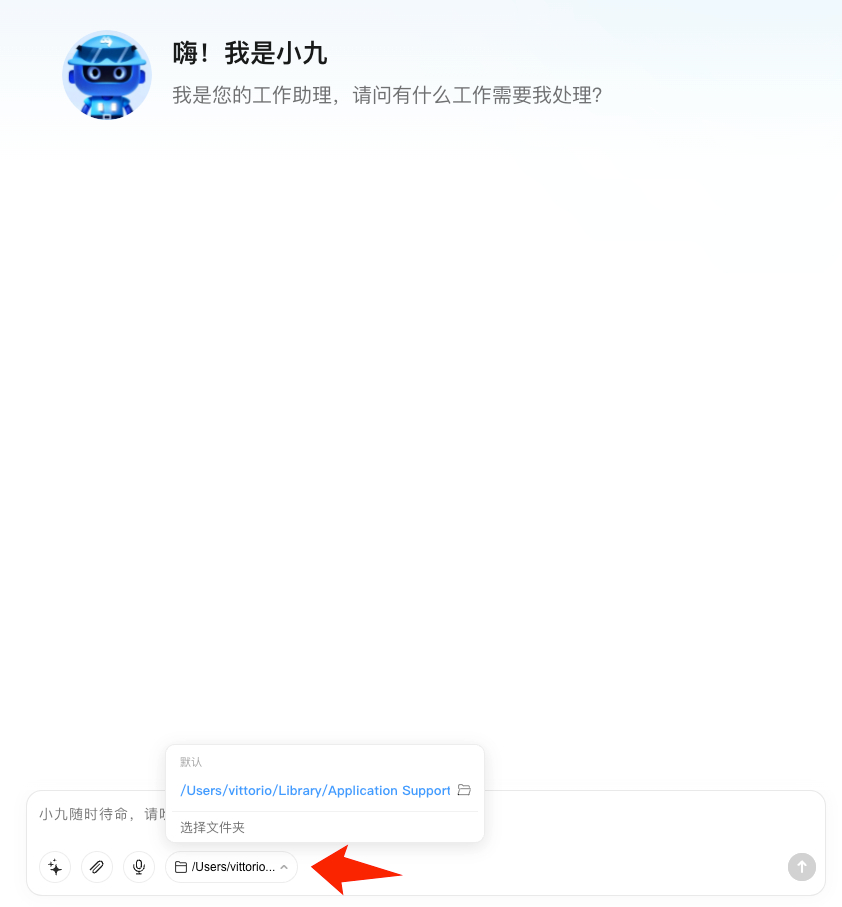
You can change the default workspace directory. This is where Xiaoji stores and reads files by default, and you can point it to any directory you use frequently.
Session Space
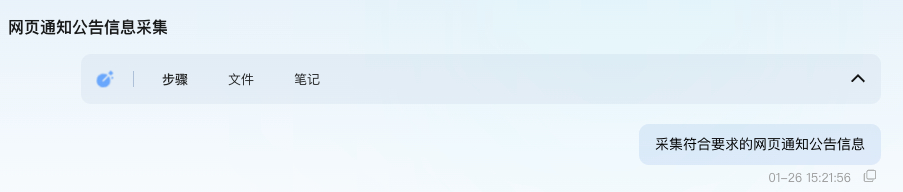
The session space contains everything produced in the current conversation. It has three parts:
Steps
- Shows what the Agent has done
- Includes clicks, text input, capability calls, generated data, and more
- Useful when you want to understand exactly how the Agent completed the task
Files
- All files related to the current conversation appear here
- This includes:
- Files you uploaded
- Files downloaded by the browser
- Files generated by the Agent, such as spreadsheets or documents
Notes
- Information collected by the Agent through the Record Page and Record Info tools during execution
Conversation History Management
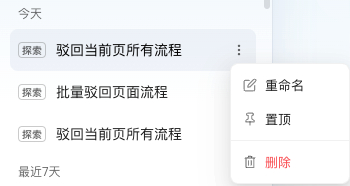
The left side shows your conversation history list.
You can:
- Pin conversations: keep frequently used ones at the top
- Rename conversations:
- Give them a name that is easier for you to recognize
- This does not affect the capabilities or results inside the conversation
Tip: rename a conversation based on what it actually did. That makes it much easier to find later.