Turn a Capability into a Template
A Problem You May Already Have Noticed
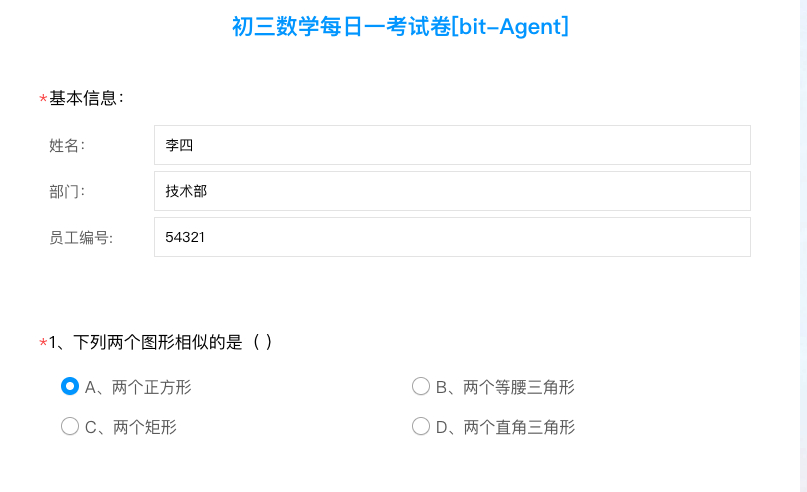
The capability we just created still fills:
- your name
- your department
- your employee ID
If you send this capability to a teammate:
- it will fill their form using your data
- the capability is effectively only usable by you
The Fix: Turn Fixed Values into Parameters
What we need is:
change values like name, department, and employee ID
from hard-coded values in the workflow
into parameters that are filled in at runtime
That turns the capability into:
a template capability that anyone can use
At this point, we already have a working capability. Our goal is to extract those values as variables so they can be changed each time the capability runs.
Step 1: Open Step Editing
Go to:
Console -> Capability Management -> Current Capability -> Edit Steps
Open the step editor for the capability.
Step 2: Mark Fixed Values as Parameters
The operation is simple:
click the relevant step
enable theParameterbutton beside the field
the field becomes an input parameter
In this example workflow, we need to mark the Text Content field as a parameter in:
- step 2: name
- step 3: department
- step 4: employee ID
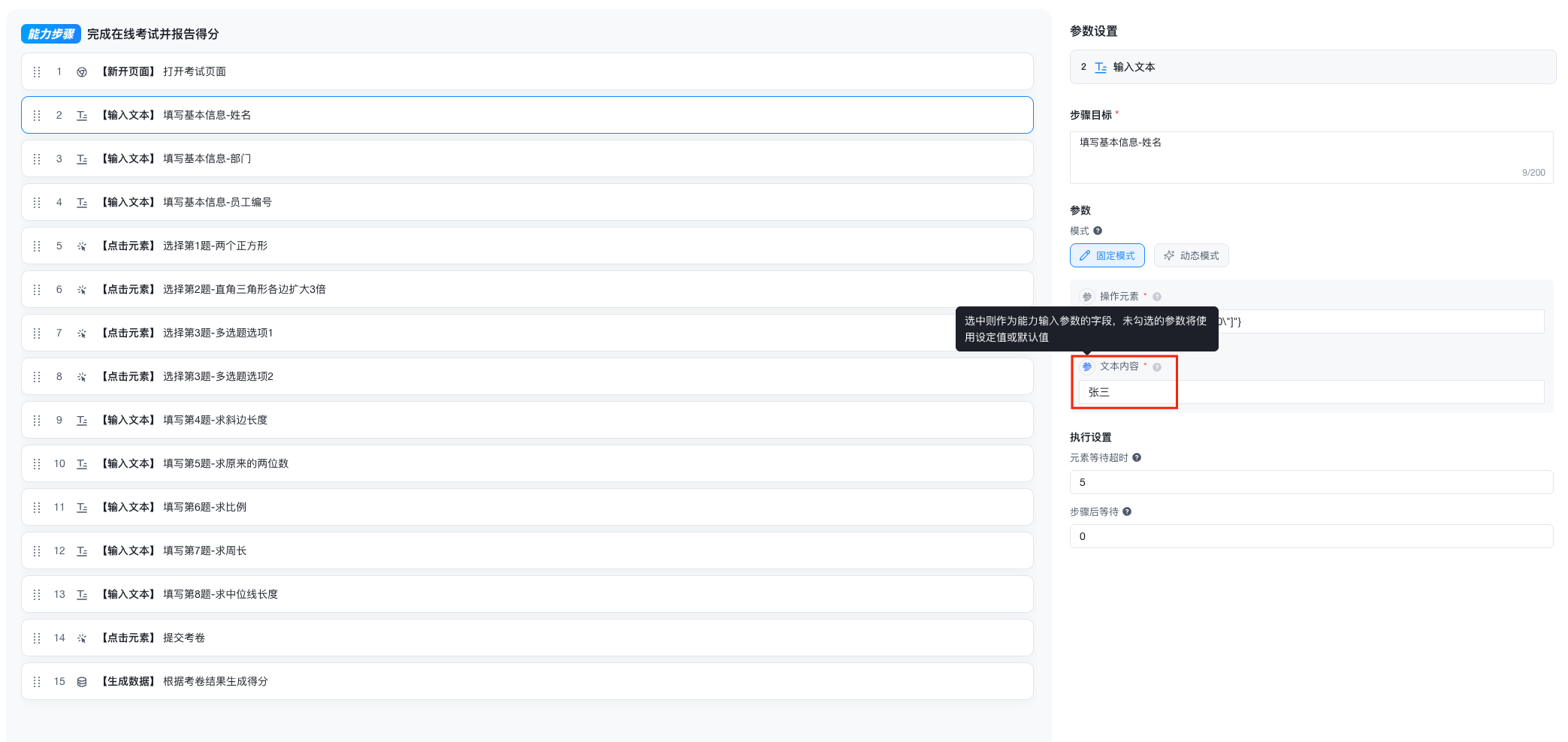
You may notice the Dynamic Mode option. That is a more advanced parameter mechanism and will be explained separately in the advanced chapter.
Step 3: Review and Adjust Parameter Definitions
After clicking Next:
bit-Agent automatically generates:
- parameter names
- parameter descriptions
- default values
- whether each parameter is required
You can then:
- rename the parameter
- edit the description
- change whether it is required
- update the default value
Required parameters ignore their default values and are requested again every time.
Once everything looks right, click Save.
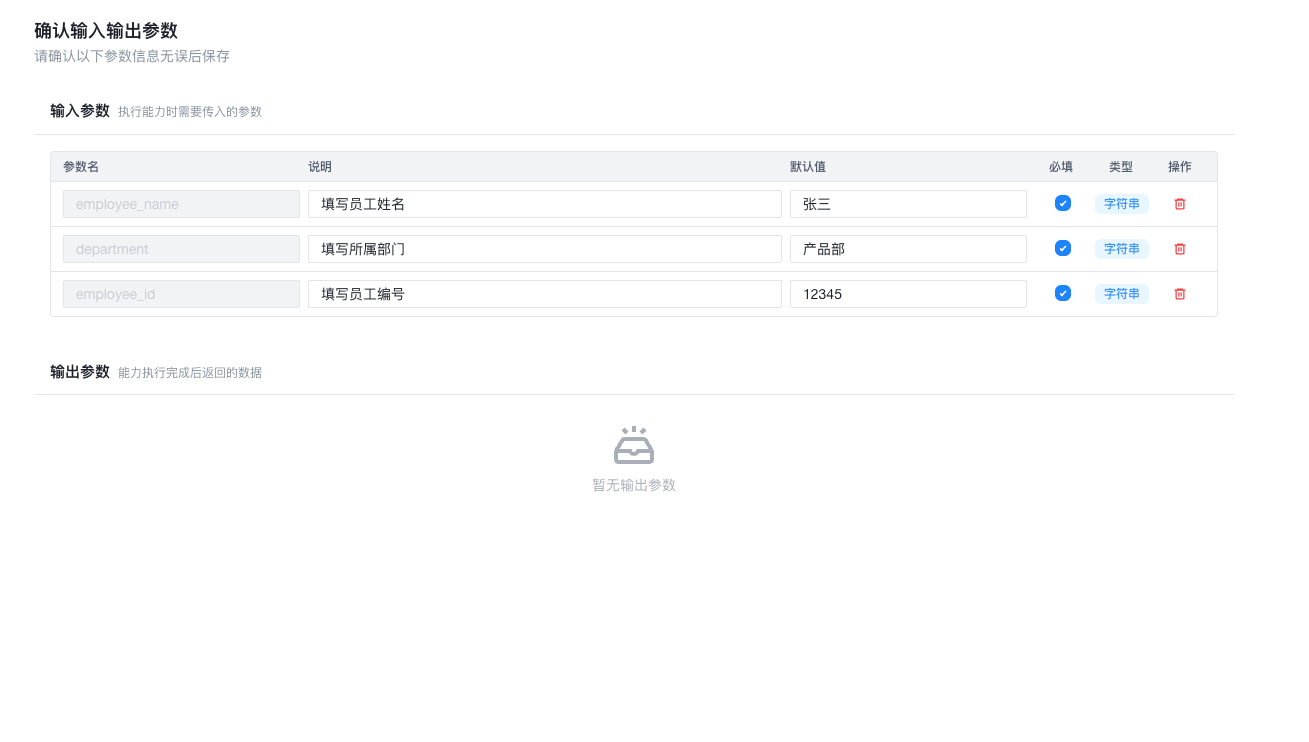
Step 4: Test the Parameterized Capability
Run the capability again after saving:
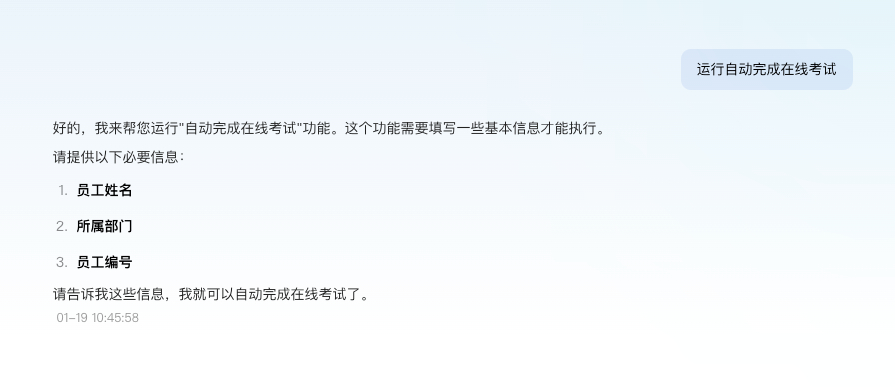
Now you will see that bit-Agent actively asks for:
- name
- department
- employee ID
Enter new parameter values:
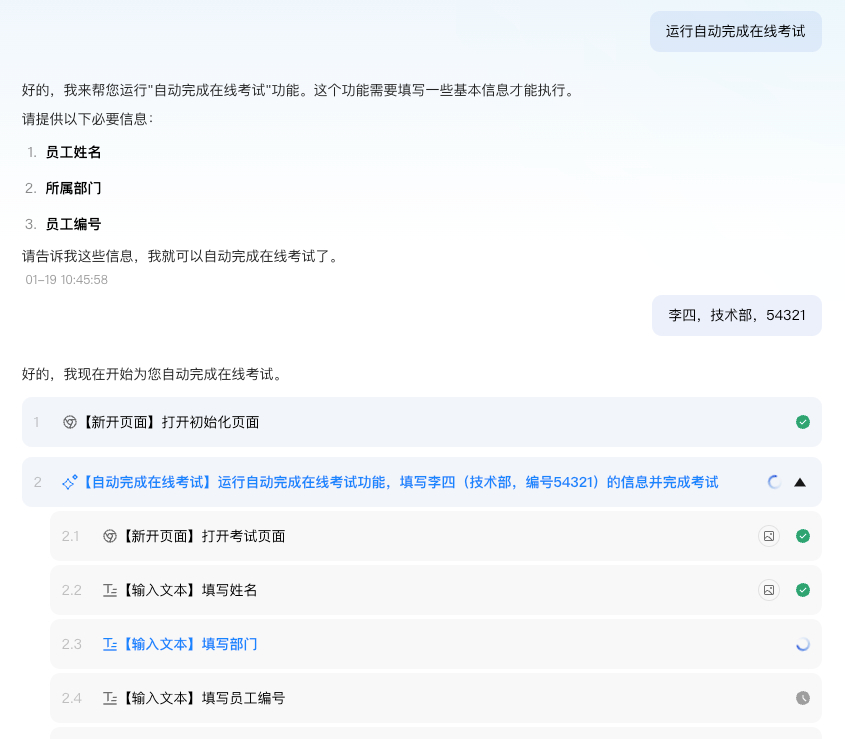
The steps will now run using the new values.
At this point, you have learned how to make a flexible capability for yourself.
In other words:
you have moved from
"automation only for your own use"
to
"a productivity tool you can hand off to others"